| .cursor | ||
| .vscode | ||
| assets | ||
| data | ||
| src | ||
| utils | ||
| .editorconfig | ||
| .gitattributes | ||
| .gitignore | ||
| AGENTS.md | ||
| CHANGELOG.md | ||
| CONTRIBUTING.md | ||
| LICENSE.md | ||
| README.md | ||

MaksIT Unified Scheduler Service






A modern scheduler built on .NET 10 for running PowerShell scripts and console applications on Windows and Linux. Designed for system administrators — and also for those who feel like system administrators — who need a predictable, resilient, and secure background execution environment.
Tip: A graphical UScheduler UI is included for service registration, script scheduling, and log viewing — no command-line required.
See CONTRIBUTING.md for development setup, commit format, and release workflow.
Table of Contents
- MaksIT Unified Scheduler Service
Scripts Examples
Note: These examples are bundled with the release and copied to
C:\MaksIT\Scripts(standard) or the install folder'sScriptsdirectory (portable) by the Windows setup exe (and by--install/--prepare-data) only if that folder or script is not already present. Existing files and script folders are never overwritten or merged. They are listed in the default configuration but disabled by default. To enable an example, set"Disabled": falsein the sharedsettings.json(or use the UI).
- Hyper-V Backup - Production-ready Hyper-V VM backup solution with scheduling and retention management
- Native-Sync - Production-ready file synchronization solution using pure PowerShell with no external dependencies
- File-Sync - FreeFileSync batch job execution
- Windows-Update - Production-ready Windows Update automation solution using pure PowerShell
- Scheduler Template Module
Features at a Glance
- .NET 10 Worker Service – clean, robust, stable.
- Fully portable – relocate between machines without reconfiguration.
- Windows and Linux – Windows SCM or systemd; Avalonia UI on both.
- Strongly typed configuration via machine-wide
settings.json(ProgramData). - Parallel execution – PowerShell scripts & executables run concurrently using RunspacePool and Task.WhenAll.
- Relative path support – script paths can be relative to
C:\MaksIT\Scripts. - Signature enforcement (AllSigned by default).
- Automatic restart-on-failure for supervised processes.
- Extensible logging (file + console + Windows EventLog).
- Built-in CLI for service management (
--install,--uninstall,--start,--stop,--status). - Reusable scheduling module:
SchedulerTemplate.psm1. - Thread-isolated architecture — individual failures do not affect others.
Installation
Install layout
The Windows setup exe lets you choose Standard or Portable.
Standard (default):
| Location | Purpose | Who can write |
|---|---|---|
C:\Program Files\MaksIT\UScheduler |
Worker (MaksIT.UScheduler.exe) and UI (MaksIT.UScheduler.UI.exe) |
Administrators |
C:\MaksIT\Scripts |
Scheduled scripts (all users). The Windows setup exe (and --install / --prepare-data) copies bundled examples only into missing folders; existing scripts are never overwritten. |
Users (after install) |
C:\MaksIT\Logs |
Service and script logs | Users (after install) |
%ProgramData%\MaksIT\UScheduler\settings.json |
Shared schedule configuration | Users (after install) |
%AppData%\MaksIT\UScheduler\settings.json |
Per-user UI prefs (service bin path override) | Current user |
Portable (everything in one folder):
| Location | Purpose |
|---|---|
| Install folder (you choose it) | Worker and UI |
Install folder\Scripts |
Scheduled scripts |
Install folder\Logs |
Service and script logs |
Install folder\Data\settings.json |
Shared schedule configuration |
Install folder\Data\ui-settings.json |
UI prefs |
A portable file in that folder (or a parent folder) marks the layout. Pick a writable location such as C:\MaksIT\UScheduler if you do not want Program Files. The Users group is granted modify rights on Scripts, Logs, and Data so the UI can stay unelevated.
The Windows setup exe, registering the service, or MaksIT.UScheduler --prepare-data creates the data folders, copies bundled example scripts when missing, and grants the Users group modify rights so the UI can stay unelevated. Add --portable to keep data next to the binaries instead of C:\MaksIT and ProgramData.
Using CLI Commands
The executable includes built-in service management commands. Run as Administrator (Windows) or root (Linux):
# Install the service (auto-start / systemd enable)
MaksIT.UScheduler --install

# Start the service
MaksIT.UScheduler --start

# Check service status
MaksIT.UScheduler --status

# Stop the service
MaksIT.UScheduler --stop

# Uninstall the service
MaksIT.UScheduler --uninstall

# Show help
MaksIT.UScheduler --help

# Create data folders and ACLs without installing the service
MaksIT.UScheduler --prepare-data

# Portable layout: scripts, logs, and settings next to the executable
MaksIT.UScheduler --prepare-data --portable
On Windows the file is MaksIT.UScheduler.exe.
| Command | Short | Description |
|---|---|---|
--install |
-i |
Install the service (Windows SCM or systemd) |
--uninstall |
-u |
Stop and remove the service |
--start |
Start the service | |
--stop |
Stop the service | |
--status |
Query service status | |
--prepare-data |
Create scripts, logs, and shared settings (elevated) | |
--portable |
With --install / --prepare-data: keep data in the install folder |
|
--help |
-h |
Show help message |
Note: Service management commands require administrator / root privileges.
Using sc.exe (Windows)
Alternatively, use Windows Service Control Manager directly:
sc.exe create "MaksIT.UScheduler" binPath= "C:\Path\To\MaksIT.UScheduler.exe" start= auto
sc.exe start "MaksIT.UScheduler"
Using systemd (Linux)
--install writes /etc/systemd/system/MaksIT.UScheduler.service (Type=notify) and enables the unit. You can also:
sudo systemctl enable --now MaksIT.UScheduler
sudo systemctl status MaksIT.UScheduler
To uninstall:
sc.exe stop "MaksIT.UScheduler"
sc.exe delete "MaksIT.UScheduler"
UScheduler UI
The UI is an Avalonia desktop app (Windows and Linux) for service registration, script schedules, and log viewing. Launch MaksIT.UScheduler.UI.exe from Program Files — it runs without administrator rights. Register, start, stop, and unregister prompt for elevation in place; the window stays open.
Getting Started
When you unpack the portable zip, launch MaksIT.UScheduler.UI.exe (or Start-UScheduler.bat). The zip is a portable layout: scripts, logs, and settings stay in the extracted folder. GitHub releases also ship a Windows setup exe (worker + UI; choose Standard or Portable on the install page) and a Flatpak of the UI.
Linux (Flatpak)
User (this account only):
flatpak install --user ./maksit-uscheduler-{version}.flatpak
flatpak run com.maks_it.uscheduler
System (all users):
sudo flatpak install --system ./maksit-uscheduler-{version}.flatpak
flatpak run com.maks_it.uscheduler
Uninstall: flatpak uninstall --user com.maks_it.uscheduler or sudo flatpak uninstall --system com.maks_it.uscheduler.
The previous id com.maks_it.UScheduler is replaced by this lowercase id. Uninstall the old app before installing the new bundle if it was installed.
If GNOME or KDE does not show a launcher icon, flatpak run may warn that /var/lib/flatpak/exports/share and ~/.local/share/flatpak/exports/share are not on XDG_DATA_DIRS. Log out and back in once so the session picks up those paths.
Linux uses X11/XWayland (Avalonia native Wayland still hangs on GNOME). The sandbox grants --filesystem=home for scripts and logs. The Flatpak is the UI; the worker is a separate Linux systemd install. AppStream and the desktop file live in data/.
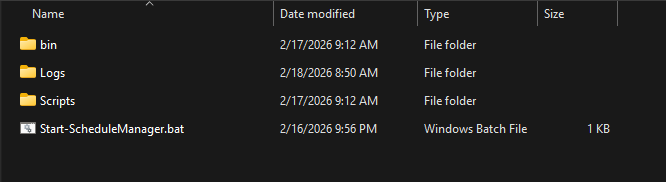
Note: Service management (register, start, stop, unregister) prompts for administrator approval without restarting the UI. Schedule edits go to
%ProgramData%\MaksIT\UScheduler\settings.jsonon a standard install (orData\settings.jsonnext to a portable install) and do not require elevation after the first install.
Settings View
The Settings view is your starting point for configuring UScheduler.
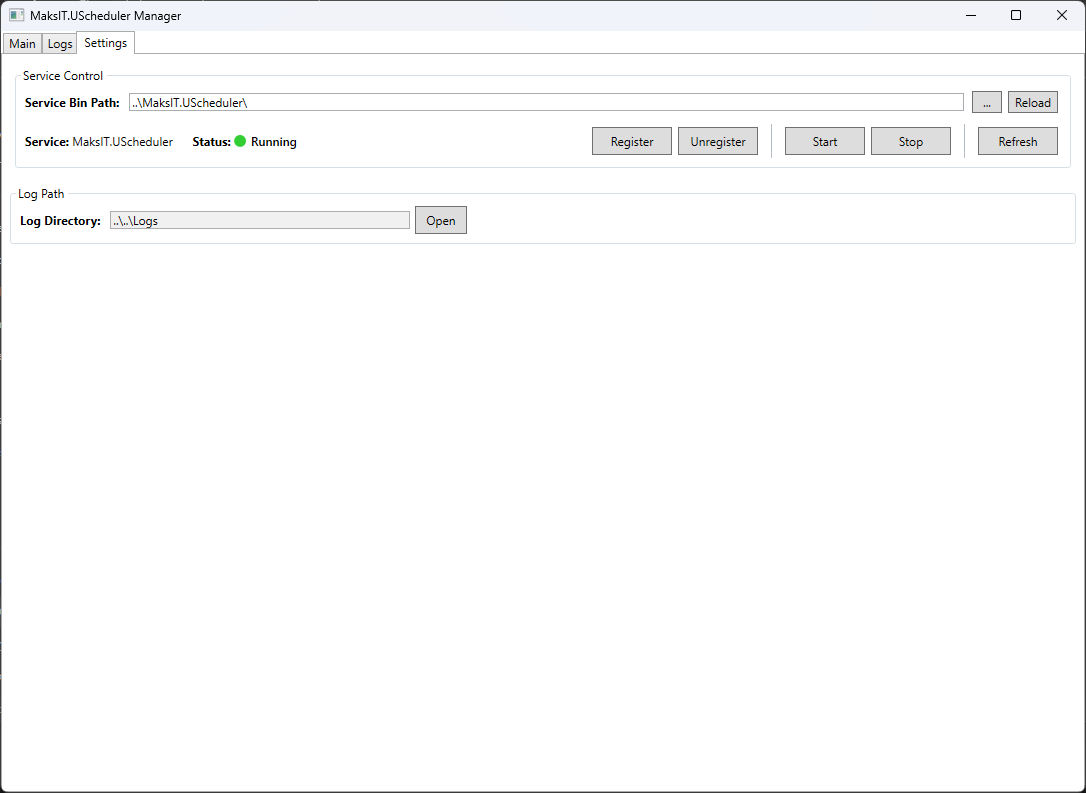
| Feature | Description |
|---|---|
| Service Bin Path | Path to the worker folder (auto-detected from Program Files, the UI directory, or a portable folder; override stored in %AppData%/MaksIT/UScheduler/settings.json or Data\ui-settings.json when portable) |
| Service Status | Real-time status indicator (Running, Stopped, Starting, Stopping, Paused, Not Installed) |
| Register/Unregister | Install or remove the Windows service or systemd unit (UAC / polkit prompt, UI stays open) |
| Start/Stop | Control the service state (same in-app elevation) |
| Refresh | Update the current service status display |
| Reload Settings | Refresh shared configuration from %ProgramData%\MaksIT\UScheduler\settings.json (or Data\settings.json when portable) |
Main View — Schedule Management
The Main view allows you to manage script schedules and execution settings.
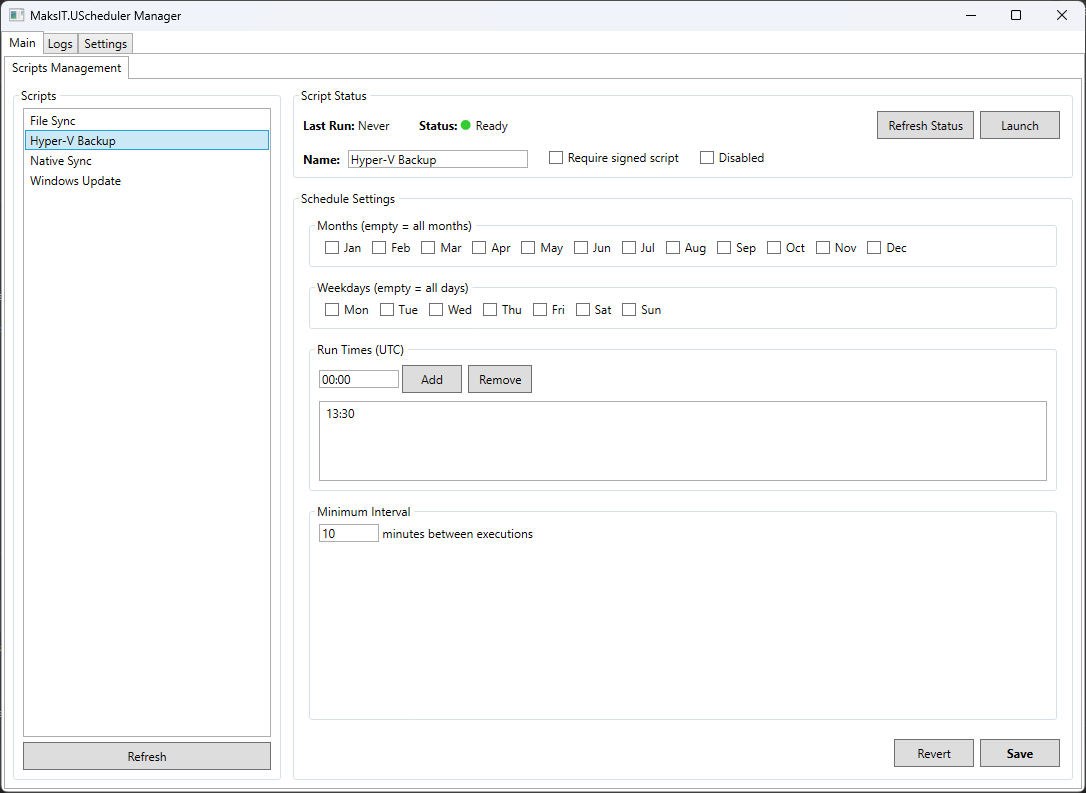
Script List Panel:
- Lists all PowerShell scripts configured in shared
settings.json - Each row shows a description and which hosts it supports
- Scripts that cannot run on this OS stay listed but are grayed out
- Select a script to view and edit its schedule
Script Configuration:
| Setting | Description |
|---|---|
| Name | Display name for the script |
| Is Signed | Require script to be digitally signed (AllSigned policy) |
| Disabled | Skip this script during scheduled execution |
Schedule Configuration:
| Setting | Description |
|---|---|
| Run Month | Select specific months to run (empty = every month) |
| Run Weekday | Select specific days of the week (empty = every day) |
| Run Time | Add/remove specific execution times (HH:mm format) |
| Min Interval | Minimum minutes between executions (prevents duplicate runs) |
Actions:
- Save — Persist schedule changes to
scriptsettings.json - Revert — Discard unsaved changes
- Launch — Execute the script immediately via its
.batfile
Script Status:
- View lock file status (indicates if script is currently running)
- View last execution timestamp
- Remove stale lock files from crashed scripts
Service Logs View
Monitor the UScheduler service activity and troubleshoot issues.
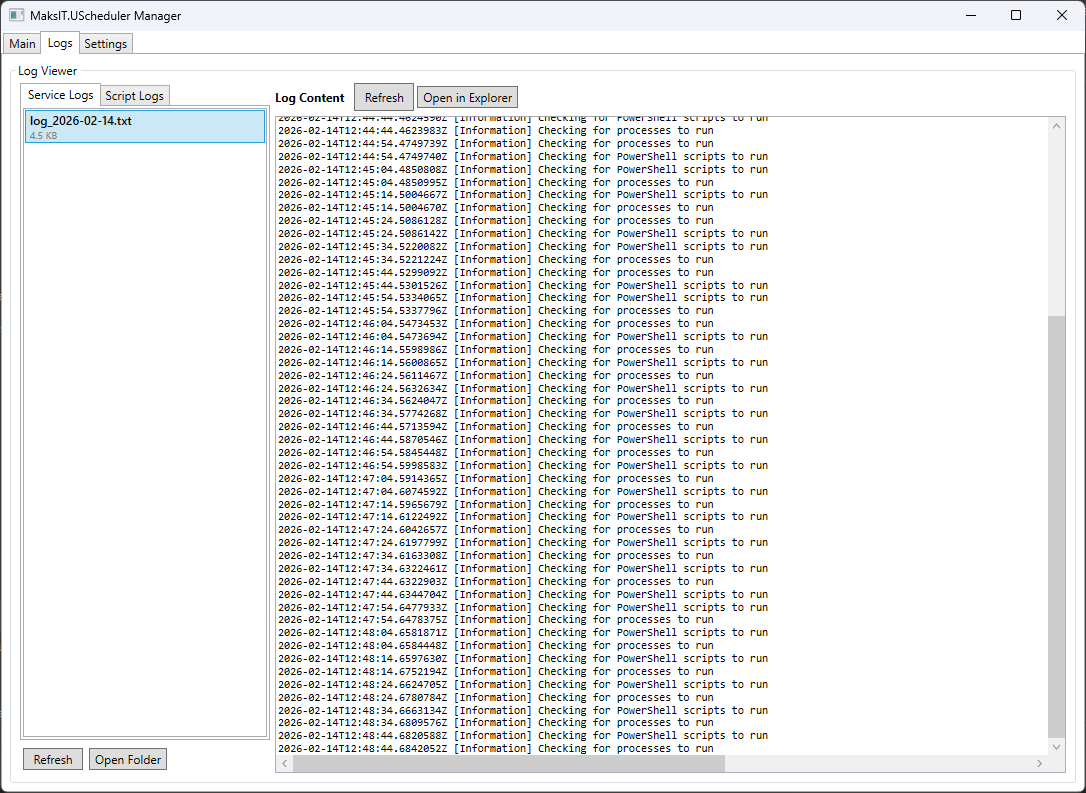
Features:
- Browse service log files sorted by date
- View log content directly in the application
- Open log files in Windows Explorer
- Refresh logs to see latest entries
Script Logs View
View execution logs for individual scheduled scripts.
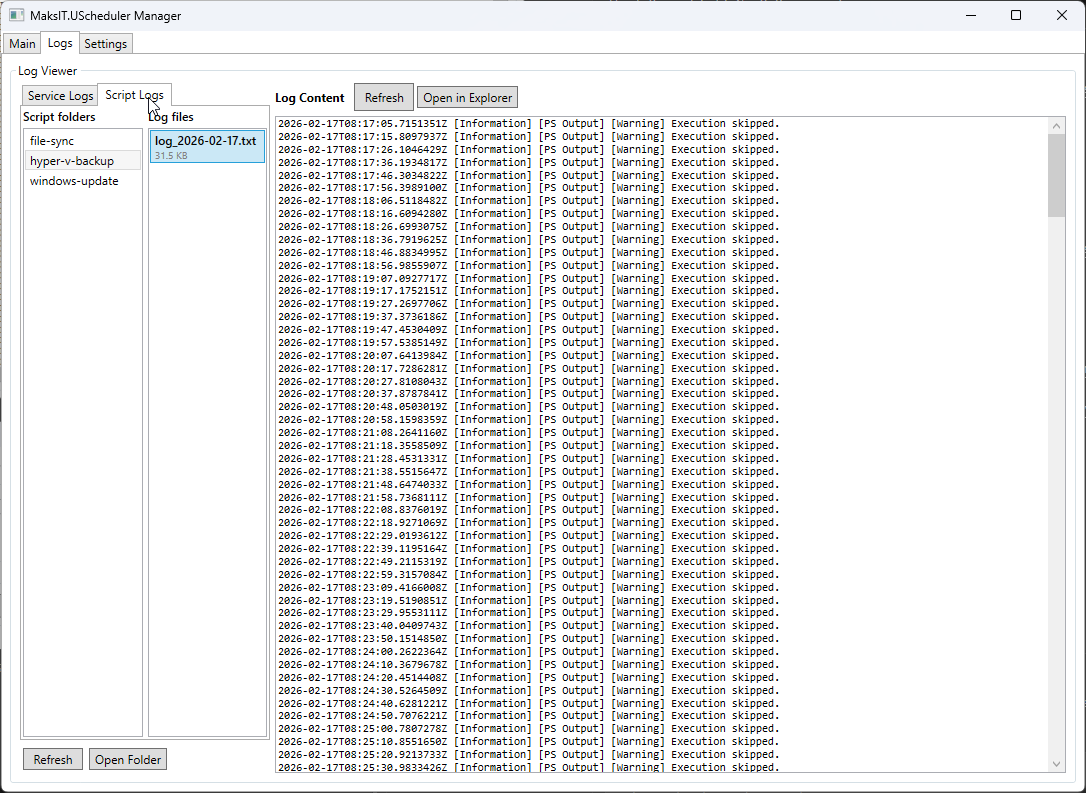
Features:
- Browse log folders organized by script name
- Select and view individual log files
- Track script execution history and errors
- Open logs in Explorer for external tools
Configuration
Machine-wide settings.json
Host logging (log levels, Event Log source) stays in shipped appsettings.json next to MaksIT.UScheduler.exe. Schedule configuration is not written there — a leftover Configuration block is copied once into the machine-wide file:
%ProgramData%\MaksIT\UScheduler\settings.json (standard) or {install folder}\Data\settings.json (portable)
{
  "Configuration": {
    "ServiceName": "MaksIT.UScheduler",
    "LogDir": "C:\\MaksIT\\Logs",
    "ScriptsDir": "C:\\MaksIT\\Scripts",

    "Powershell": [
      { "Path": "File-Sync\\file-sync.ps1", "IsSigned": true, "Disabled": false },
      { "Path": "C:\\MaksIT\\Scripts\\AnotherScript.ps1", "IsSigned": false, "Disabled": true, "Platforms": ["Windows"], "Description": "Windows-only example" }
    ],

    "Processes": [
      { "Path": "C:\\Tools\\MyApp.exe", "Args": ["--option"], "RestartOnFailure": true, "Disabled": false }
    ]
  }
}
Note:
ServiceName,LogDir, andScriptsDirare optional. Defaults:"MaksIT.UScheduler",C:\MaksIT\Logs, andC:\MaksIT\Scripts.
Path Resolution
Paths can be either absolute or relative:
| Path Type | Example | Resolved To |
|---|---|---|
| Absolute | C:\MaksIT\Scripts\backup.ps1 |
C:\MaksIT\Scripts\backup.ps1 |
| Relative | File-Sync\file-sync.ps1 |
{ScriptsDir}\File-Sync\file-sync.ps1 (C:\MaksIT\Scripts by default) |
Relative script paths are resolved against ScriptsDir. Relative process paths are still resolved against the worker's install directory.
Log Levels
The "Default": "Information" setting controls the minimum severity of messages that get logged. Available levels (from most to least verbose):
| Level | Description |
|---|---|
Trace |
Most detailed, for debugging internals |
Debug |
Debugging information |
Information |
General operational events (recommended default) |
Warning |
Abnormal or unexpected events |
Error |
Errors and exceptions |
Critical |
Critical failures requiring immediate attention |
None |
Disables logging |
PowerShell Scripts
| Property | Type | Default | Description |
|---|---|---|---|
Path |
string | required | Path to .ps1 file (absolute or relative) |
Name |
string | optional | Display name in the UI |
Description |
string | optional | Short text under the name in the script list |
Platforms |
string[] | empty (all) | Windows and/or Linux. Empty = both. The worker skips scripts that do not match the host; the list grays them out. |
IsSigned |
bool | true |
true enforces AllSigned, false runs unrestricted |
Disabled |
bool | false |
true skips this script during execution |
Processes
| Property | Type | Default | Description |
|---|---|---|---|
Path |
string | required | Path to executable (absolute or relative) |
Args |
string[] | null |
Command-line arguments |
RestartOnFailure |
bool | false |
Restart process if it exits with non-zero code |
Disabled |
bool | false |
true skips this process during execution |
How It Works
Each script or process is executed in its own managed thread.
PowerShell Execution Parameters
myCommand.Parameters.Add(new CommandParameter("Automated", true));
myCommand.Parameters.Add(new CommandParameter("CurrentDateTimeUtc", DateTime.UtcNow.ToString("o")));
Inside the script:
param (
    [switch]$Automated,
    [string]$CurrentDateTimeUtc
)
Execution Model
Scripts and processes run in parallel using:
- PowerShell:
RunspacePool(up to CPU core count concurrent runspaces) - Processes:
Task.WhenAllfor concurrent process execution
Unified Scheduler Service
├── PSScriptBackgroundService (RunspacePool)
│   ├── ScriptA.ps1     ─┐
│   ├── ScriptB.ps1     ─┼─ Parallel execution
│   └── ScriptC.ps1     ─┘
└── ProcessBackgroundService (Task.WhenAll)
    ├── ProgramA.exe    ─┐
    ├── ProgramB.exe    ─┼─ Parallel execution
    └── ProgramC.exe    ─┘
- A failure in one script/process never stops the service or other components.
- The same script/process won't run twice concurrently (protected by "already running" check).
- Execution cycle repeats every 10 seconds.
Reusable Scheduler Module (SchedulerTemplate.psm1)
This module provides:
-
Scheduling by:
- Month
- Weekday
- Exact time(s)
- Minimum interval
-
Automatic lock file (no concurrent execution)
-
Last-run file tracking
-
Unified callback execution pattern
Exported Functions
| Function | Description |
|---|---|
Write-Log |
Logging with timestamp, level (Info/Success/Warning/Error), and color support |
Invoke-ScheduledExecution |
Main scheduler — checks schedule, manages locks, runs callback |
Get-CredentialFromEnvVar |
Retrieves credentials from Base64-encoded machine environment variables |
Test-UNCPath |
Validates whether a path is a UNC path |
Send-EmailNotification |
Sends SMTP email with optional SSL and credential support |
Module Version
The module exports $ModuleVersion and $ModuleDate for version tracking.
Example usage
param (
    [switch]$Automated,
    [string]$CurrentDateTimeUtc
)

Import-Module "$PSScriptRoot\..\SchedulerTemplate.psm1" -Force

$Config = @{
    RunMonth = @()
    RunWeekday = @()
    RunTime = @("22:52")
    MinIntervalMinutes = 10
}

function Start-BusinessLogic {
     Write-Log "Executing business logic..." -Automated:$Automated
}

Invoke-ScheduledExecution -Config $Config -Automated:$Automated -CurrentDateTimeUtc $CurrentDateTimeUtc -ScriptBlock {
    Start-BusinessLogic
}
Workflow for new scheduled scripts:
- Copy template
- Modify
$Config - Implement
Start-BusinessLogic - Add script to the shared
settings.json(ProgramData on a standard install, orData\settings.jsonwhen portable — or use the UI)
That’s it — the full scheduling engine is reused automatically.
Security
- Scripts run with AllSigned execution policy by default.
- Set
IsSigned: falseto use Unrestricted policy (not recommended for production). - Scripts are auto-unblocked before execution (Zone.Identifier removed).
- Signature validation ensures only trusted scripts execute.
Logging
- Console logging — standard output
- File logging — written to
LogDir(default:C:\MaksIT\Logs) - Windows EventLog — events logged to Application log under
MaksIT.USchedulersource - All events (start, stop, crash, restart, error, skip) are logged
Testing
The project includes a comprehensive test suite using xUnit and Moq for unit testing.
Running Tests
Use the RepoUtils test engine (recommended):
.\utils\Invoke-TestEngine.bat
Or run tests directly:
# Run all tests
dotnet test src/MaksIT.UScheduler.Tests

# Run with verbose output
dotnet test src/MaksIT.UScheduler.Tests --verbosity normal
Code Coverage
Coverage badges in README.md are rewritten by the test engine (CoverageBadges with badgeFormat: shields). After changing tests or coverage, rerun:
.\utils\Invoke-TestEngine.bat
Commit the updated README shields.io badge URLs with the test or release work.
Test Structure
| Test Class | Coverage |
|---|---|
ConfigurationTests |
Configuration POCOs and default values |
ConfigurationFileServiceTests |
Shared ProgramData settings.json seed/copy/save |
HostDataDirectoriesTests |
Seed script copy skips existing folders and files |
ProcessBackgroundServiceTests |
Process execution lifecycle and error handling |
PSScriptBackgroundServiceTests |
PowerShell script execution and signature validation |
Contact
Maksym Sadovnychyy — MAKS-IT
Email: maksym.sadovnychyy@gmail.com
License
Apache 2.0 — see LICENSE.md.