| assets | ||
| src | ||
| utils | ||
| .gitattributes | ||
| .gitignore | ||
| CHANGELOG.md | ||
| CONTRIBUTING.md | ||
| LICENSE.md | ||
| README.md | ||

MaksIT Unified Scheduler Service



A modern, fully rewritten Windows service built on .NET 10 for scheduling and running PowerShell scripts and console applications. Designed for system administrators — and also for those who feel like system administrators — who need a predictable, resilient, and secure background execution environment.
Tip: A graphical Schedule Manager UI is included for easy service registration, script scheduling, and log viewing — no command-line required.
Table of Contents
- MaksIT Unified Scheduler Service
Scripts Examples
Note: These examples are bundled with the release and included in the default
appsettings.json, but are disabled by default. To enable an example, set"Disabled": falsein the configuration.
- Hyper-V Backup - Production-ready Hyper-V VM backup solution with scheduling and retention management
- Native-Sync - Production-ready file synchronization solution using pure PowerShell with no external dependencies
- File-Sync - FreeFileSync batch job execution
- Windows-Update - Production-ready Windows Update automation solution using pure PowerShell
- Scheduler Template Module
Features at a Glance
- .NET 10 Worker Service – clean, robust, stable.
- Fully portable – relocate between machines without reconfiguration.
- Windows only – designed specifically for Windows services.
- Strongly typed configuration via
appsettings.json. - Parallel execution – PowerShell scripts & executables run concurrently using RunspacePool and Task.WhenAll.
- Relative path support – script and process paths can be relative to the application directory.
- Signature enforcement (AllSigned by default).
- Automatic restart-on-failure for supervised processes.
- Extensible logging (file + console + Windows EventLog).
- Built-in CLI for service management (
--install,--uninstall,--start,--stop,--status). - Reusable scheduling module:
SchedulerTemplate.psm1. - Thread-isolated architecture — individual failures do not affect others.
Installation
Using CLI Commands
The executable includes built-in service management commands. Run as Administrator:
# Install the service (auto-start enabled)
MaksIT.UScheduler.exe --install

# Start the service
MaksIT.UScheduler.exe --start

# Check service status
MaksIT.UScheduler.exe --status

# Stop the service
MaksIT.UScheduler.exe --stop

# Uninstall the service
MaksIT.UScheduler.exe --uninstall

# Show help
MaksIT.UScheduler.exe --help
| Command | Short | Description |
|---|---|---|
--install |
-i |
Install the Windows service (auto-start) |
--uninstall |
-u |
Stop and remove the Windows service |
--start |
Start the service | |
--stop |
Stop the service | |
--status |
Query service status | |
--help |
-h |
Show help message |
Note: Service management commands require administrator privileges.
Using sc.exe
Alternatively, use Windows Service Control Manager directly:
sc.exe create "MaksIT.UScheduler" binpath="C:\Path\To\MaksIT.UScheduler.exe" start=auto
sc.exe start "MaksIT.UScheduler"
To uninstall:
sc.exe stop "MaksIT.UScheduler"
sc.exe delete "MaksIT.UScheduler"
Schedule Manager UI
The Schedule Manager is a WPF application that provides a graphical interface for managing the UScheduler service and its scheduled scripts.
Getting Started
When you download and unpack the release bundle, launch Start-ScheduleManager.bat as administrator.
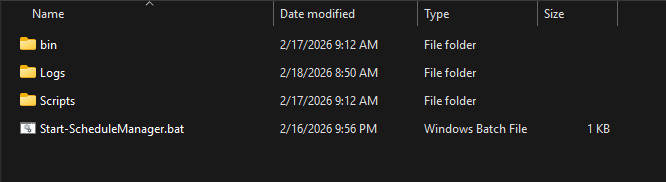
Note: Administrator privileges are required only for service management operations (register, start, stop, unregister). Regular schedule editing can be done without elevation.
Settings View
The Settings view is your starting point for configuring the Schedule Manager.
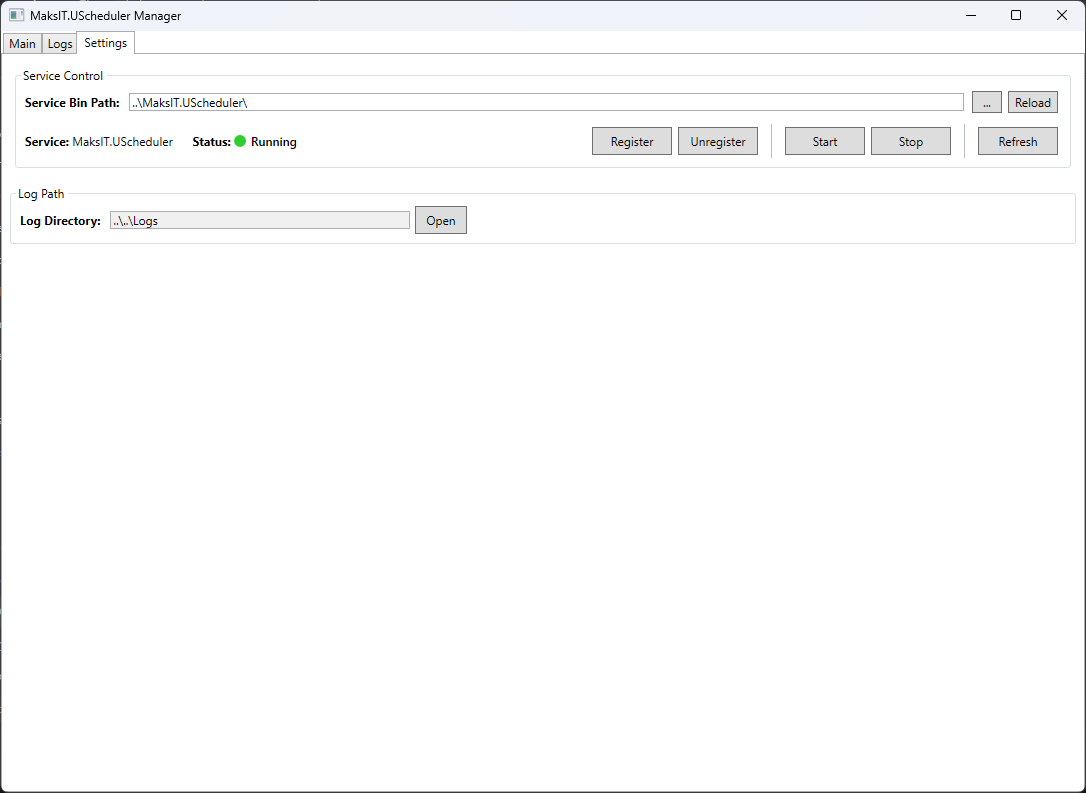
| Feature | Description |
|---|---|
| Service Bin Path | Path to the UScheduler installation folder containing MaksIT.UScheduler.exe |
| Service Status | Real-time status indicator (Running, Stopped, Starting, Stopping, Paused, Not Installed) |
| Register/Unregister | Install or remove the Windows service (requires admin) |
| Start/Stop | Control the service state (requires admin) |
| Refresh | Update the current service status display |
| Reload Settings | Refresh service configuration from appsettings.json |
Main View — Schedule Management
The Main view allows you to manage script schedules and execution settings.
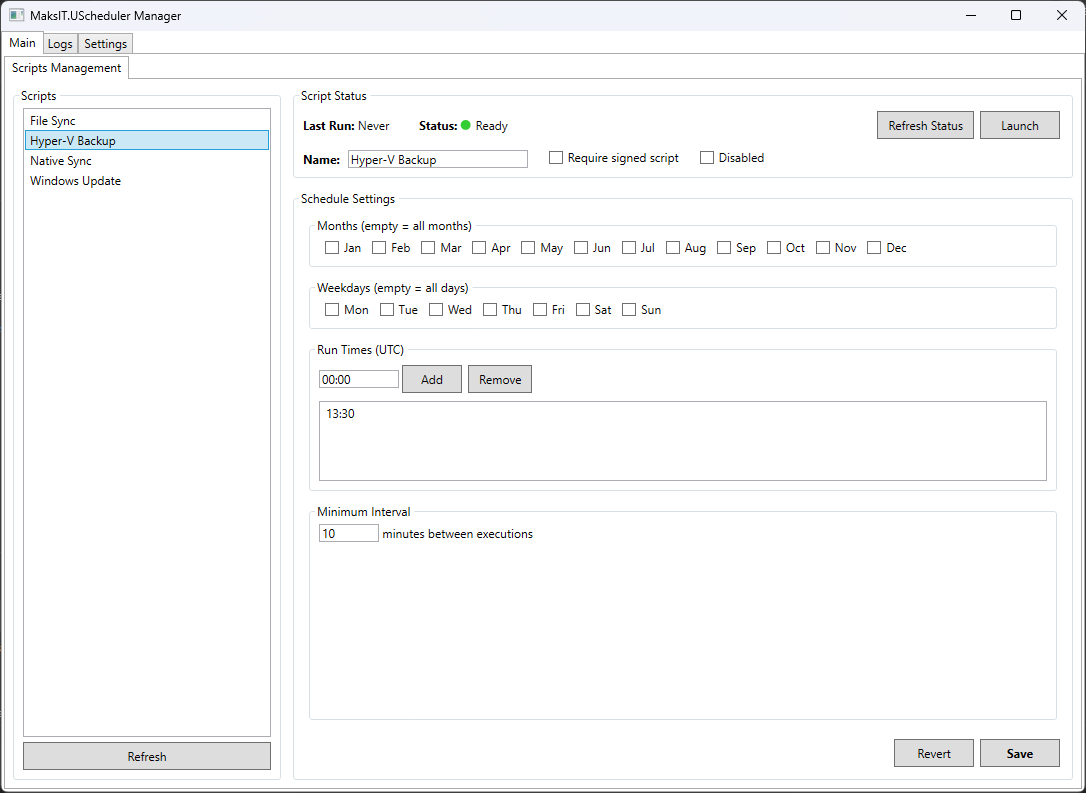
Script List Panel:
- Lists all PowerShell scripts configured in
appsettings.json - Select a script to view and edit its schedule
Script Configuration:
| Setting | Description |
|---|---|
| Name | Display name for the script |
| Is Signed | Require script to be digitally signed (AllSigned policy) |
| Disabled | Skip this script during scheduled execution |
Schedule Configuration:
| Setting | Description |
|---|---|
| Run Month | Select specific months to run (empty = every month) |
| Run Weekday | Select specific days of the week (empty = every day) |
| Run Time | Add/remove specific execution times (HH:mm format) |
| Min Interval | Minimum minutes between executions (prevents duplicate runs) |
Actions:
- Save — Persist schedule changes to
scriptsettings.json - Revert — Discard unsaved changes
- Launch — Execute the script immediately via its
.batfile
Script Status:
- View lock file status (indicates if script is currently running)
- View last execution timestamp
- Remove stale lock files from crashed scripts
Service Logs View
Monitor the UScheduler service activity and troubleshoot issues.
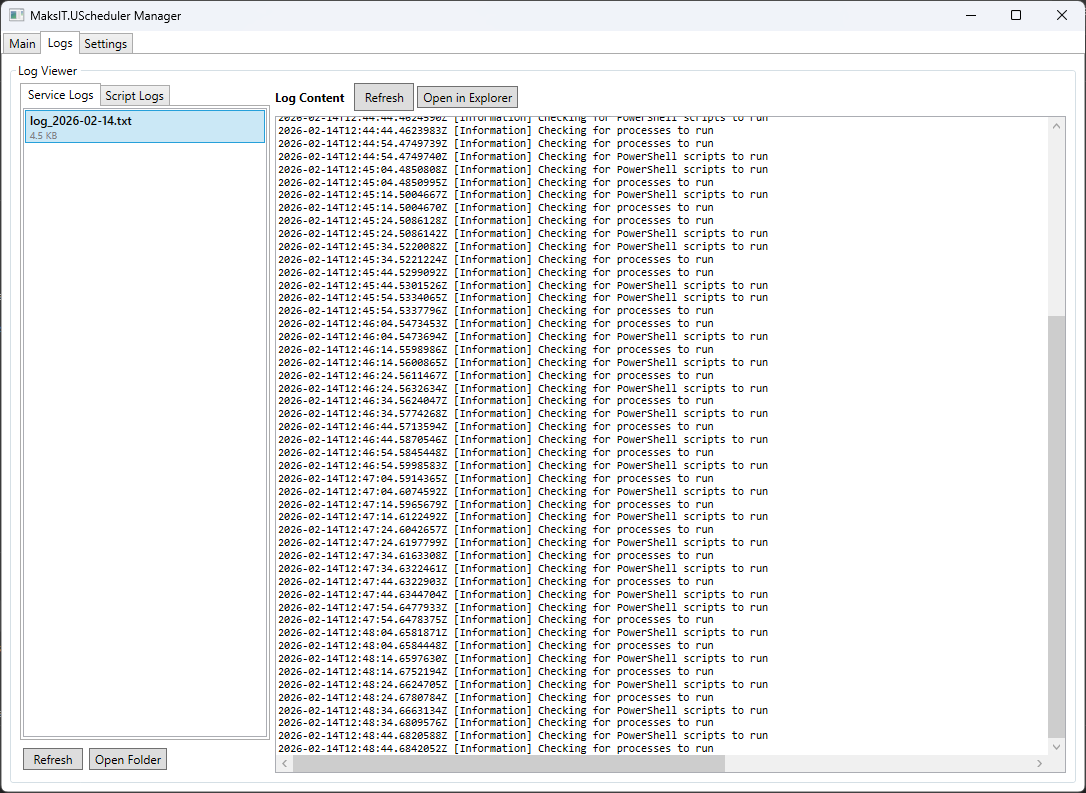
Features:
- Browse service log files sorted by date
- View log content directly in the application
- Open log files in Windows Explorer
- Refresh logs to see latest entries
Script Logs View
View execution logs for individual scheduled scripts.
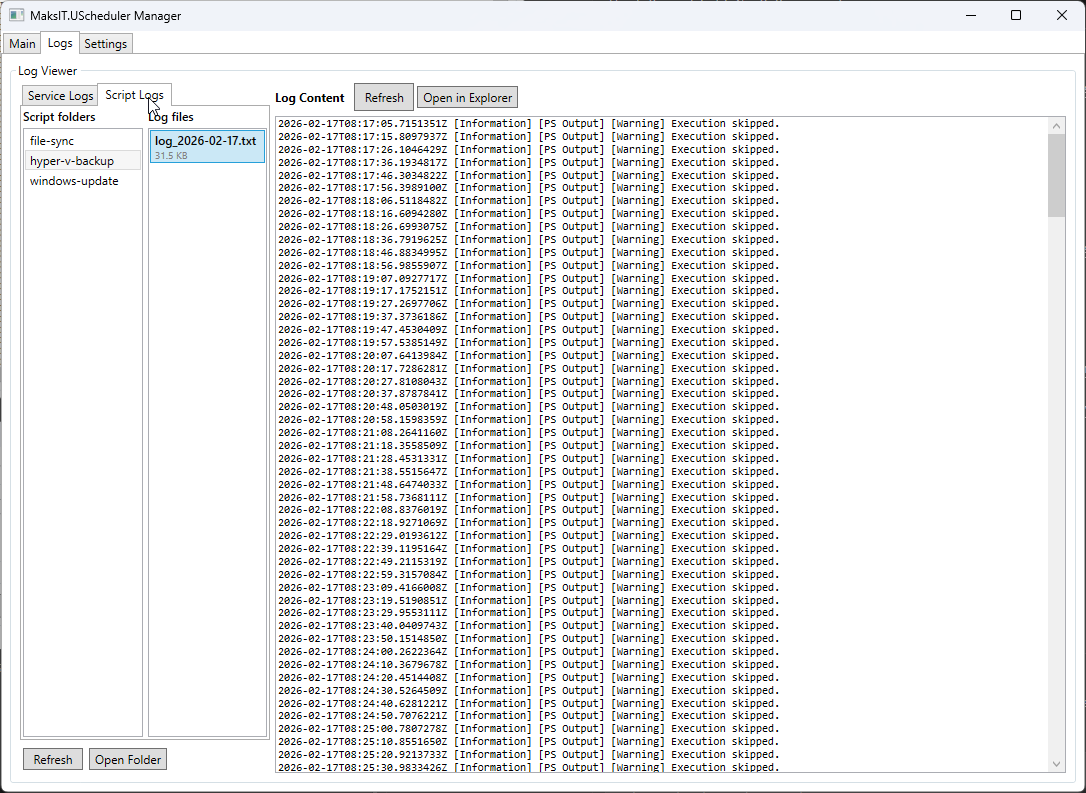
Features:
- Browse log folders organized by script name
- Select and view individual log files
- Track script execution history and errors
- Open logs in Explorer for external tools
Configuration (appsettings.json)
{
  "Logging": {
    "LogLevel": {
      "Default": "Information"
    },
    "EventLog": {
      "SourceName": "MaksIT.UScheduler",
      "LogName": "Application",
      "LogLevel": {
        "Microsoft": "Information",
        "Microsoft.Hosting.Lifetime": "Information"
      }
    }
  },
  "Configuration": {
    "ServiceName": "MaksIT.UScheduler",
    "LogDir": "C:\\Logs",

    "Powershell": [
      { "Path": "..\\Scripts\\MyScript.ps1", "IsSigned": true, "Disabled": false },
      { "Path": "C:\\Scripts\\AnotherScript.ps1", "IsSigned": false, "Disabled": true }
    ],

    "Processes": [
      { "Path": "..\\Tools\\MyApp.exe", "Args": ["--option"], "RestartOnFailure": true, "Disabled": false }
    ]
  }
}
Note:
ServiceNameandLogDirare optional. Defaults:"MaksIT.UScheduler"andLogsfolder in app directory.
Path Resolution
Paths can be either absolute or relative:
| Path Type | Example | Resolved To |
|---|---|---|
| Absolute | C:\Scripts\backup.ps1 |
C:\Scripts\backup.ps1 |
| Relative | ../Scripts/backup.ps1 |
{AppDirectory}\..\Scripts\backup.ps1 |
| Relative | scripts/backup.ps1 |
{AppDirectory}\scripts\backup.ps1 |
Relative paths are resolved against the application's base directory (where MaksIT.UScheduler.exe is located).
Log Levels
The "Default": "Information" setting controls the minimum severity of messages that get logged. Available levels (from most to least verbose):
| Level | Description |
|---|---|
Trace |
Most detailed, for debugging internals |
Debug |
Debugging information |
Information |
General operational events (recommended default) |
Warning |
Abnormal or unexpected events |
Error |
Errors and exceptions |
Critical |
Critical failures requiring immediate attention |
None |
Disables logging |
PowerShell Scripts
| Property | Type | Default | Description |
|---|---|---|---|
Path |
string | required | Path to .ps1 file (absolute or relative) |
IsSigned |
bool | true |
true enforces AllSigned, false runs unrestricted |
Disabled |
bool | false |
true skips this script during execution |
Processes
| Property | Type | Default | Description |
|---|---|---|---|
Path |
string | required | Path to executable (absolute or relative) |
Args |
string[] | null |
Command-line arguments |
RestartOnFailure |
bool | false |
Restart process if it exits with non-zero code |
Disabled |
bool | false |
true skips this process during execution |
How It Works
Each script or process is executed in its own managed thread.
PowerShell Execution Parameters
myCommand.Parameters.Add(new CommandParameter("Automated", true));
myCommand.Parameters.Add(new CommandParameter("CurrentDateTimeUtc", DateTime.UtcNow.ToString("o")));
Inside the script:
param (
    [switch]$Automated,
    [string]$CurrentDateTimeUtc
)
Execution Model
Scripts and processes run in parallel using:
- PowerShell:
RunspacePool(up to CPU core count concurrent runspaces) - Processes:
Task.WhenAllfor concurrent process execution
Unified Scheduler Service
├── PSScriptBackgroundService (RunspacePool)
│   ├── ScriptA.ps1     ─┐
│   ├── ScriptB.ps1     ─┼─ Parallel execution
│   └── ScriptC.ps1     ─┘
└── ProcessBackgroundService (Task.WhenAll)
    ├── ProgramA.exe    ─┐
    ├── ProgramB.exe    ─┼─ Parallel execution
    └── ProgramC.exe    ─┘
- A failure in one script/process never stops the service or other components.
- The same script/process won't run twice concurrently (protected by "already running" check).
- Execution cycle repeats every 10 seconds.
Reusable Scheduler Module (SchedulerTemplate.psm1)
This module provides:
-
Scheduling by:
- Month
- Weekday
- Exact time(s)
- Minimum interval
-
Automatic lock file (no concurrent execution)
-
Last-run file tracking
-
Unified callback execution pattern
Exported Functions
| Function | Description |
|---|---|
Write-Log |
Logging with timestamp, level (Info/Success/Warning/Error), and color support |
Invoke-ScheduledExecution |
Main scheduler — checks schedule, manages locks, runs callback |
Get-CredentialFromEnvVar |
Retrieves credentials from Base64-encoded machine environment variables |
Test-UNCPath |
Validates whether a path is a UNC path |
Send-EmailNotification |
Sends SMTP email with optional SSL and credential support |
Module Version
The module exports $ModuleVersion and $ModuleDate for version tracking.
Example usage
param (
    [switch]$Automated,
    [string]$CurrentDateTimeUtc
)

Import-Module "$PSScriptRoot\..\SchedulerTemplate.psm1" -Force

$Config = @{
    RunMonth = @()
    RunWeekday = @()
    RunTime = @("22:52")
    MinIntervalMinutes = 10
}

function Start-BusinessLogic {
     Write-Log "Executing business logic..." -Automated:$Automated
}

Invoke-ScheduledExecution -Config $Config -Automated:$Automated -CurrentDateTimeUtc $CurrentDateTimeUtc -ScriptBlock {
    Start-BusinessLogic
}
Workflow for new scheduled scripts:
- Copy template
- Modify
$Config - Implement
Start-BusinessLogic - Add script to
appsettings.json
That’s it — the full scheduling engine is reused automatically.
Security
- Scripts run with AllSigned execution policy by default.
- Set
IsSigned: falseto use Unrestricted policy (not recommended for production). - Scripts are auto-unblocked before execution (Zone.Identifier removed).
- Signature validation ensures only trusted scripts execute.
Logging
- Console logging — standard output
- File logging — written to
LogDir(default:Logsfolder in app directory) - Windows EventLog — events logged to Application log under
MaksIT.USchedulersource - All events (start, stop, crash, restart, error, skip) are logged
Testing
The project includes a comprehensive test suite using xUnit and Moq for unit testing.
Running Tests
# Run all tests
dotnet test src/MaksIT.UScheduler.Tests

# Run with verbose output
dotnet test src/MaksIT.UScheduler.Tests --verbosity normal
Code Coverage
Coverage badges are generated locally using ReportGenerator.
Prerequisites:
dotnet tool install --global dotnet-reportgenerator-globaltool
Generate coverage report and badges:
.\src\scripts\Run-Coverage\Run-Coverage.ps1

# With HTML report opened in browser
.\src\scripts\Run-Coverage\Run-Coverage.ps1 -OpenReport
Test Structure
| Test Class | Coverage |
|---|---|
ConfigurationTests |
Configuration POCOs and default values |
ProcessBackgroundServiceTests |
Process execution lifecycle and error handling |
PSScriptBackgroundServiceTests |
PowerShell script execution and signature validation |
Contact
Maksym Sadovnychyy — MAKS-IT
Email: maksym.sadovnychyy@gmail.com
License
This project is licensed under the MIT License. See LICENSE.md for details.