| .cursor | ||
| assets | ||
| src | ||
| utils | ||
| .gitattributes | ||
| .gitignore | ||
| AGENTS.md | ||
| CHANGELOG.md | ||
| CONTRIBUTING.md | ||
| LICENSE.md | ||
| package-lock.json | ||
| pipeline.json | ||
| README.md | ||

MaksIT.CertsUI – Modern container-native ACME client with a full WebUI experience



MaksIT.CertsUI is a powerful, container-native ACMEv2 client built to simplify and automate the entire lifecycle of HTTPS certificates issued by Let’s Encrypt. It is an independent, unofficial project and is not affiliated with or endorsed by Let’s Encrypt or ISRG.
Designed for modern infrastructure, it combines a robust WebAPI, intuitive WebUI, and lightweight edge Agent to deliver fully automated certificate issuance, renewal, and deployment across Docker, Podman, and Kubernetes environments. MaksIT.CertsUI supports the HTTP-01 challenge and follows the official Let’s Encrypt guidelines while implementing recommended security and operational best practices.
Authorization is scope-based RBAC for users and API keys (organization-scoped Identity / ApiKey flags). Global administrator on a signed-in user (JWT) and on an API key are evaluated separately—a user being admin does not automatically grant the same to a key they create. Certificate and account endpoints today accept any authenticated principal; enforcement is in src/MaksIT.CertsUI/ (authorization filter, identity, and API-key services). Contributors: AGENTS.md → maksit-auth-rbac.
Contributors and AI agents: architecture skill index in AGENTS.md (homelab common/maksit-* skills via .cursor/maksit-skills.json). Source code is authoritative when docs and behavior differ.
If you find this project useful, please consider supporting its development:

Table of Contents
- MaksIT.CertsUI – Modern container-native ACME client with a full WebUI experience
- Table of Contents
- Changelog
- Contributing
- Architecture and documentation
- Architecture
- MaksIT.CertsUI Server Installation on Linux with Podman Compose
- MaksIT.CertsUI Server Installation on Windows with Docker Compose
- MaksIT.CertsUI Server installation on Kubernetes
- Run E2E Against k3s Ingress (PowerShell)
- MaksIT.CertsUI Interface Overview
- Contact
Changelog
Version history and release notes live in CHANGELOG.md.
Contributing
See CONTRIBUTING.md for setup, pull request expectations, and security reporting.
Architecture and documentation
Contributors / AI agents: skill index in AGENTS.md (homelab common/maksit-* skills — layering, RBAC, HA, Helm, etc.). Operators: runbooks and behavior below, CHANGELOG.md, and Helm NOTES.txt after install.
Server health endpoints:
| Path | Use |
|---|---|
GET /health/live |
Liveness — process up |
GET /health/ready |
Readiness and load balancers — 503 until bootstrap coordination completes, then PostgreSQL check |
GET /health/startup |
Startup diagnostics — JSON phase snapshot (migrations, schema sync, bootstrap) |
See CONTRIBUTING.md for development setup.
Architecture
This solution provides automated, secure management of Let's Encrypt certificates for environments where the edge proxy is behind NAT and certificate management logic runs in a Docker/Podman compose or Kubernetes cluster.
Current Limitations
-
Single Agent Support:
The current implementation supports only a single MaksIT.CertsUI Agent instance. Multi-agent edge deployments are not supported at this time. -
HTTP-01 Challenge Only:
Only the HTTP-01 ACME challenge type is supported. DNS-01 and other challenge types are not implemented. -
Optional Dedicated Worker Split:
ACME write coordination is implemented through PostgreSQL runtime leases in the main server process. A dedicated ACME worker deployment/chart split is optional and not implemented in this repository yet.
The server component supports HA replicas with DB-backed coordination. See High availability architecture and Kubernetes installation.
High availability architecture
Symmetric server replicas share one PostgreSQL database. Runtime coordination uses MaksIT.HAMode (NuGet) for IRuntimeInstanceId (Kubernetes: POD_NAME) and IRuntimeLeaseService on app_runtime_leases. CertsUI-specific lease names live in RuntimeLeaseNames (certs-ui-bootstrap, certs-ui-renewal-sweep, certs-ui-acme-writer). ACME sessions, HTTP-01 tokens, and identity data are stored in PostgreSQL so any replica can serve traffic and /.well-known/acme-challenge/ behind a load balancer.
| Path | Use |
|---|---|
GET /health/live |
Liveness |
GET /health/ready |
Readiness — 503 until bootstrap coordination completes |
GET /health/startup |
Startup phase timings (migrations, schema sync, bootstrap) |
For Helm replicaCount, external Postgres, and homelab install order, see Kubernetes installation.
Architecture Scheme
                             Edge Proxy (NAT)                 Kubernetes Cluster (Internal Network)
                             +-----------------------+        +----------------------------------------------------+
                             |                       |  HTTP  |  +-----------------------+     +----------------+  |
+-------------------+        |     Reverse Proxy-----|--------|->|                       |     |                |  |
|                   |  ACME  |    (HAProxy/Nginx)    |        |  | MaksIT.CertsUI Server |<--->|  MaksIT.WebUI  |  |
|   Let's Encrypt   |<------>|                       |  HTTP  |  |     (ACME logic)      |     |  (Management)  |  |
|    (Internet)     |  HTTP  | MaksIT.CertsUI Agent<-|--------|--|                       |     |                |  |
|                   |        |    (Edge WebAPI,      |        |  +-----------------------+     +----------------+  |
+-------------------+        |   next to HAProxy)    |        +----------------------------------------------------+
                             |                       |
                             +-----------------------+
                                         |
                                         |
                                         v
                             +-----------------------+
                             |                       |
                             |    Application(s)     |
                             |                       |
                             +-----------------------+
Architecture Description
MaksIT.CertsUI Agent
The MaksIT.CertsUI Agent is a lightweight service responsible for receiving cached certificates from the MaksIT.CertsUI server and deploying them to the local file system used by your reverse proxy (e.g., HAProxy or Nginx). It also handles proxy service reloads to activate new certificates.
Check Agent repository for more details and installation instructions: MaksIT.CertsUI Agent
MaksIT.CertsUI WebUI
The MaksIT.CertsUI WebUI is a user-friendly web interface designed to simplify the management of Let's Encrypt certificates within your infrastructure. With the WebUI, administrators can easily view, import, and export the certificate cache, streamlining certificate operations without the need for direct command-line interaction.
Key Features:
-
Certificate Management Dashboard:
Provides a clear overview of all managed certificates, their status, and expiration dates. -
Import/Export Certificate Cache:
Easily back up or restore your certificate cache. This feature allows you to move certificates between environments or recover from failures without reissuing certificates from Let's Encrypt. -
Redeploy Cached Certificates:
Instantly redeploy existing (cached) certificates to your edge agents or proxies. This avoids unnecessary requests to Let's Encrypt, reducing rate limit concerns and ensuring rapid recovery or migration. -
No Need for Reissuance:
By leveraging the cache import/export and redeploy features, you can restore or migrate certificates without triggering new ACME challenges or consuming additional Let's Encrypt issuance quotas. -
Secure Access:
The WebUI is accessible only via username and password authentication, ensuring that only authorized users can manage certificates.
The WebUI is designed for operational efficiency and security, making certificate lifecycle management straightforward for both small and large deployments.
MaksIT.CertsUI WebAPI
The MaksIT.CertsUI Webapi is the core backend service responsible for orchestrating all certificate management operations in the MaksIT.CertsUI solution. It implements the ACME protocol to interact with Let's Encrypt, handles HTTP-01 challenges, manages the certificate cache, and coordinates certificate deployment to edge agents.
Main Responsibilities:
-
ACME Protocol Handling:
Communicates with Let's Encrypt to request, renew, and revoke certificates using the official ACME protocol. -
Challenge Management:
Receives and responds to HTTP-01 challenge requests, enabling domain validation even when the edge proxy is behind NAT. -
Certificate Cache Management:
Stores issued certificates securely and provides endpoints for importing, exporting, and redeploying cached certificates. -
Agent Coordination:
Sends certificates to edge agents (such as the MaksIT.CertsUI Agent) and instructs them to reload or restart the proxy service to activate new certificates. -
API Security:
All API endpoints are protected by authentication mechanisms (such as API keys), ensuring that only authorized agents and users can perform sensitive operations. -
Integration with WebUI:
Serves as the backend for the MaksIT.CertsUI WebUI, enabling administrators to manage certificates through a secure and intuitive web interface.
The Webapi is designed for deployment in secure environments such as Kubernetes clusters, centralizing certificate management while keeping HTTPS termination and certificate storage at the network edge.
Flow Overview
- ACME Challenge Routing:
- The Edge Proxy (HAProxy/Nginx), running behind NAT, listens for HTTP requests on port80.
- Requests to
/.well-known/acme-challenge/are forwarded via HTTP to the LetsEncrypt Client running in the Kubernetes cluster.
- LetsEncrypt Client (Kubernetes):
- Handles ACME challenge requests, responds to Let's Encrypt for domain validation, and manages certificate issuance.
- The Web UI provides management for certificate operations.
- Certificate Deployment:
- After successful validation and certificate issuance, the LetsEncrypt Client sends the new certificates to the Agent (Edge WebAPI) running on the same machine as the Edge Proxy.
- The Agent stores the certificates in the directory used by the proxy (e.g.,
/etc/haproxy/certs).
- Proxy Reload:
- The LetsEncrypt Client instructs the Agent to reload or restart the Edge Proxy, ensuring the new certificates are used for HTTPS traffic.
- HTTPS Serving:
- The Edge Proxy serves HTTPS traffic to backend applications using the updated certificates.
Key Points:
- The Edge Proxy and Agent are deployed together on the edge server, while the LetsEncrypt Client and Web UI run in Kubernetes.
- All ACME challenge and certificate management logic is centralized in Kubernetes, while certificate storage and HTTPS termination remain at the edge.
- This architecture supports secure automation even when the edge server is not directly accessible from the public internet.
Note: Currently, only HTTP-01 challenges are supported. The server supports multi-replica Kubernetes deployments with PostgreSQL-backed coordination.
MaksIT.CertsUI Server Installation on Linux with Podman Compose
Podman Compose usage to orchestrate MaksIT.CertsUI on Linux. Unlike the Kubernetes Helm chart, a full Compose stack includes PostgreSQL in the same project (service name postgres). From 3.5.0 onward, ACME sessions, HTTP-01 tokens, and identity data live in PostgreSQL—the server container does not need /acme, /data, or /tmp volume mounts.
For day-to-day development from a git clone, prefer src/docker-compose.yml and src/docker-compose.override.yml in this repository (build contexts, dev overrides, optional pgAdmin). The steps below describe a production-style layout under /opt/Compose/MaksIT.CertsUI using registry images.
Prerequisites
- Podman
podman-compose(for examplesudo dnf install podman-compose -y)- Create these folders:
/opt/Compose/MaksIT.CertsUI/configMap/opt/Compose/MaksIT.CertsUI/secrets/opt/Compose/MaksIT.CertsUI/client/opt/Compose/MaksIT.CertsUI/postgresql/data(Postgres data directory)
sudo mkdir -p /opt/Compose/MaksIT.CertsUI/configMap \
  /opt/Compose/MaksIT.CertsUI/secrets \
  /opt/Compose/MaksIT.CertsUI/client \
  /opt/Compose/MaksIT.CertsUI/postgresql/data
Create the following files in the appropriate folders:
1. Create the file /opt/Compose/MaksIT.CertsUI/secrets/appsecrets.json with this command:
sudo tee /opt/Compose/MaksIT.CertsUI/secrets/appsecrets.json > /dev/null <<EOF
{
  "Configuration": {
    "CertsEngineConfiguration": {
      "ConnectionString": "Host=postgres;Port=5432;Database=certsui;Username=certsui;Password=certsui;SslMode=Prefer",
      "Admin": {
        "Username": "admin",
        "Password": "<your-admin-password>"
      },
      "JwtSettingsConfiguration": {
        "JwtSecret": "<your-jwt-secret>",
        "PasswordPepper": "<your-password-pepper>"
      },
      "Agent": {
        "AgentKey": "<your-agent-key>"
      }
    }
  }
}
EOF
Note:
Secrets use Configuration:CertsEngineConfiguration (same shape as src/helm/values.yaml templated appsecrets.json). Set ConnectionString to the Compose Postgres service hostname (postgres) and credentials that match the postgres service below (certsui / certsui / database certsui by default, aligned with src/docker-compose.override.yml). Legacy ConnectionStrings:Certs is still accepted if ConnectionString is empty. Replace <your-admin-password>, <your-jwt-secret>, <your-password-pepper>, and <your-agent-key> with secure values. Ensure <your-agent-key> matches your edge agent deployment.
2. Create the file /opt/Compose/MaksIT.CertsUI/configMap/appsettings.json with this command:
sudo tee /opt/Compose/MaksIT.CertsUI/configMap/appsettings.json <<EOF
{
  "Logging": {
    "LogLevel": {
      "Default": "Information",
      "Microsoft.AspNetCore": "Warning"
    }
  },
  "AllowedHosts": "*",
  "Configuration": {
    "CertsEngineConfiguration": {
      "AutoSyncSchema": true,
      "JwtSettingsConfiguration": {
        "JwtSecret": "",
        "Issuer": "<your-issuer>",
        "Audience": "<your-audience>",
        "ExpiresIn": 15,
        "RefreshTokenExpiresIn": 180,
        "PasswordPepper": ""
      },
      "TwoFactorSettingsConfiguration": {
        "Label": "CertsUI",
        "Issuer": "MaksIT.CertsUI",
        "Algorithm": "",
        "Digits": 6,
        "Period": 30,
        "TimeTolerance": 1
      },
      "Agent": {
        "AgentHostname": "http://<your-agent-hostname>",
        "AgentPort": 5000,
        "AgentKey": "",
        "ServiceToReload": "haproxy"
      },
      "Production": "https://acme-v02.api.letsencrypt.org/directory",
      "Staging": "https://acme-staging-v02.api.letsencrypt.org/directory"
    }
  }
}
EOF
Note:
Non-secret settings live under Configuration:CertsEngineConfiguration (see src/MaksIT.CertsUI/appsettings.json). Keep JwtSecret, PasswordPepper, AgentKey, and admin password in appsecrets.json (empty strings here). ACME sessions, HTTP-01 challenges, ToS cache, and registration data are stored in PostgreSQL. Replace JWT and agent placeholders with your environment values.
3. Create the file /opt/Compose/MaksIT.CertsUI/client/config.js with this command:
sudo tee /opt/Compose/MaksIT.CertsUI/client/config.js <<EOF
window.RUNTIME_CONFIG = {
  API_URL: "http://<your-server-hostname>/api"
};
EOF
Note:
- Replace placeholder value
<your-server-hostname>to tell the client where MaksIT.CertsUI server is running
Running the Project with Podman Compose
In the project root (/opt/Compose/MaksIT.CertsUI), create a new file named docker-compose.yml with the following content:
sudo tee /opt/Compose/MaksIT.CertsUI/docker-compose.yml <<EOF
services:
  reverseproxy:
    image: cr.maks-it.com/certs-ui/reverseproxy:latest
    container_name: maksit-certs-ui-reverseproxy
    environment:
      ASPNETCORE_ENVIRONMENT: Production
      ASPNETCORE_HTTP_PORTS: "8080"
      ReverseProxy__Clusters__webapiCluster__Destinations__d1__Address: "http://server:5000/"
      ReverseProxy__Clusters__webuiCluster__Destinations__d1__Address: "http://client:5173/"
    ports:
      - "8080:8080"
    depends_on:
      - client
      - server
    networks:
      - certs-ui-network

  client:
    image: cr.maks-it.com/certs-ui/client:latest
    container_name: maksit-certs-ui-client
    volumes:
      - /opt/Compose/MaksIT.CertsUI/client/config.js:/app/dist/config.js:ro
    networks:
      - certs-ui-network

  server:
    image: cr.maks-it.com/certs-ui/server:latest
    container_name: maksit-certs-ui-server
    environment:
      ASPNETCORE_ENVIRONMENT: Production
      ASPNETCORE_HTTP_PORTS: "5000"
    volumes:
      - /opt/Compose/MaksIT.CertsUI/configMap/appsettings.json:/configMap/appsettings.json:ro
      - /opt/Compose/MaksIT.CertsUI/secrets/appsecrets.json:/secrets/appsecrets.json:ro
    depends_on:
      - postgres
    networks:
      - certs-ui-network

  postgres:
    image: postgres:16
    container_name: maksit-certs-ui-postgres
    restart: unless-stopped
    environment:
      POSTGRES_USER: certsui
      POSTGRES_PASSWORD: certsui
      POSTGRES_DB: certsui
    volumes:
      - /opt/Compose/MaksIT.CertsUI/postgresql/data:/var/lib/postgresql/data
    networks:
      - certs-ui-network

networks:
  certs-ui-network:
    driver: bridge
EOF
Note:
Adjust volume paths if you use a different base directory. Optional pgAdmin and dev bind mounts are shown in src/docker-compose.override.yml.
1. Run Podman compose in Rootfull mode (the only mode supported by podman-compose):
sudo su -
sudo bash -c 'echo "export PATH=/usr/local/bin:/usr/local/sbin:\$PATH" >> /root/.bashrc'

exit
sudo su -

podman compose -f docker-compose.yml up
Use up --build only when building images from source (for example from src/docker-compose.yml).
2. Run Podman compose in Rootless mode (not supported by podman-compose on Alma10; not tested):
Map container UIDs to your user subuid range if volume permissions fail (for example under postgresql/data). Inspect the server image user if needed:
podman exec maksit-certs-ui-server id -u app
Then run podman compose as your normal user:
podman compose -f docker-compose.yml up
This command pulls and starts:
- reverseproxy: YARP edge on port 8080; routes
/api,/.well-known/, and the SPA toserver/client(same layout assrc/docker-compose.yml). - client: WebUI — runtime
config.jsmount; YARP upstreamhttp://client:5173/. - server: WebAPI — config + secrets mounts only; waits on
postgres; YARP upstreamhttp://server:5000/. - postgres: PostgreSQL 16 with persistent data under
postgresql/data.
Stop the services:
Press Ctrl+C in the terminal, then run:
podman compose -f docker-compose.yml down
MaksIT.CertsUI Server Installation on Windows with Docker Compose
Use Docker Compose to orchestrate MaksIT.CertsUI on Windows. Like the Linux Podman guide, this stack includes PostgreSQL (postgres service). 3.5.0+ does not use /acme, /data, or /tmp mounts on the server. For development from a clone, use src/docker-compose.yml and src/docker-compose.override.yml.
Prerequisites
- Docker Desktop (includes Docker Compose)
- Create these folders:
C:\Compose\MaksIT.CertsUI\configMapC:\Compose\MaksIT.CertsUI\secretsC:\Compose\MaksIT.CertsUI\clientC:\Compose\MaksIT.CertsUI\postgresql\data
New-Item -Path `
  'C:\Compose\MaksIT.CertsUI\configMap', `
  'C:\Compose\MaksIT.CertsUI\secrets', `
  'C:\Compose\MaksIT.CertsUI\client', `
  'C:\Compose\MaksIT.CertsUI\postgresql\data' `
  -ItemType Directory -Force
Secrets and Configuration
Create the following files in the appropriate folders:
1. Create the file C:\Compose\MaksIT.CertsUI\secrets\appsecrets.json with this command:
Set-Content -Path 'C:\Compose\MaksIT.CertsUI\secrets\appsecrets.json' -Value @'
{
  "Configuration": {
    "CertsEngineConfiguration": {
      "ConnectionString": "Host=postgres;Port=5432;Database=certsui;Username=certsui;Password=certsui;SslMode=Prefer",
      "Admin": {
        "Username": "admin",
        "Password": "<your-admin-password>"
      },
      "JwtSettingsConfiguration": {
        "JwtSecret": "<your-jwt-secret>",
        "PasswordPepper": "<your-password-pepper>"
      },
      "Agent": {
        "AgentKey": "<your-agent-key>"
      }
    }
  }
}
'@
Note:
Same secret layout as the Linux Podman guide and Helm appsecrets.json. Use hostname postgres and certsui credentials matching the postgres service below. Legacy ConnectionStrings:Certs is still supported when ConnectionString is empty.
2. Create the file C:\Compose\MaksIT.CertsUI\configMap\appsettings.json with this command:
Set-Content -Path 'C:\Compose\MaksIT.CertsUI\configMap\appsettings.json' -Value @'
{
  "Logging": {
    "LogLevel": {
      "Default": "Information",
      "Microsoft.AspNetCore": "Warning"
    }
  },
  "AllowedHosts": "*",
  "Configuration": {
    "CertsEngineConfiguration": {
      "AutoSyncSchema": true,
      "JwtSettingsConfiguration": {
        "JwtSecret": "",
        "Issuer": "<your-issuer>",
        "Audience": "<your-audience>",
        "ExpiresIn": 15,
        "RefreshTokenExpiresIn": 180,
        "PasswordPepper": ""
      },
      "TwoFactorSettingsConfiguration": {
        "Label": "CertsUI",
        "Issuer": "MaksIT.CertsUI",
        "Algorithm": "",
        "Digits": 6,
        "Period": 30,
        "TimeTolerance": 1
      },
      "Agent": {
        "AgentHostname": "http://<your-agent-hostname>",
        "AgentPort": 5000,
        "AgentKey": "",
        "ServiceToReload": "haproxy"
      },
      "Production": "https://acme-v02.api.letsencrypt.org/directory",
      "Staging": "https://acme-staging-v02.api.letsencrypt.org/directory"
    }
  }
}
'@
Note:
Non-secret settings under Configuration:CertsEngineConfiguration; keep JWT/agent/admin secrets in appsecrets.json. ACME and identity state are in PostgreSQL.
3. Create the file C:\Compose\MaksIT.CertsUI\client\config.js with this command:
Set-Content -Path 'C:\Compose\MaksIT.CertsUI\client\config.js' -Value @'
window.RUNTIME_CONFIG = {
  API_URL: "http://<your-server-hostname>:8080/api"
};
'@
Note:
- Replace placeholder value
<your-server-hostname>to tell the client where MaksIT.CertsUI server is running
Running the Project with Docker Compose
In the project root (C:\Compose\MaksIT.CertsUI), create a new file named docker-compose.yml with the following content:
Set-Content -Path 'C:\Compose\MaksIT.CertsUI\docker-compose.yml' -Value @'
services:
  reverseproxy:
    image: cr.maks-it.com/certs-ui/reverseproxy:latest
    container_name: maksit-certs-ui-reverseproxy
    environment:
      ASPNETCORE_ENVIRONMENT: Production
      ASPNETCORE_HTTP_PORTS: "8080"
      ReverseProxy__Clusters__webapiCluster__Destinations__d1__Address: "http://server:5000/"
      ReverseProxy__Clusters__webuiCluster__Destinations__d1__Address: "http://client:5173/"
    ports:
      - "8080:8080"
    depends_on:
      - client
      - server
    networks:
      - certs-ui-network

  client:
    image: cr.maks-it.com/certs-ui/client:latest
    container_name: maksit-certs-ui-client
    volumes:
      - C:\Compose\MaksIT.CertsUI\client\config.js:/app/dist/config.js:ro
    networks:
      - certs-ui-network

  server:
    image: cr.maks-it.com/certs-ui/server:latest
    container_name: maksit-certs-ui-server
    environment:
      ASPNETCORE_ENVIRONMENT: Production
      ASPNETCORE_HTTP_PORTS: "5000"
    volumes:
      - C:\Compose\MaksIT.CertsUI\configMap\appsettings.json:/configMap/appsettings.json:ro
      - C:\Compose\MaksIT.CertsUI\secrets\appsecrets.json:/secrets/appsecrets.json:ro
    depends_on:
      - postgres
    networks:
      - certs-ui-network

  postgres:
    image: postgres:16
    container_name: maksit-certs-ui-postgres
    restart: unless-stopped
    environment:
      POSTGRES_USER: certsui
      POSTGRES_PASSWORD: certsui
      POSTGRES_DB: certsui
    volumes:
      - C:\Compose\MaksIT.CertsUI\postgresql\data:/var/lib/postgresql/data
    networks:
      - certs-ui-network

networks:
  certs-ui-network:
    driver: bridge
'@
Note:
Adjust paths if you use a different base directory.
docker compose -f docker-compose.yml up
This pulls and starts reverseproxy, client, server, and postgres (see the Linux service list for roles). Use docker compose ... up --build only when building images locally from source.
Stop the services:
Press Ctrl+C in the terminal, then run:
docker compose -f docker-compose.yml down
MaksIT.CertsUI Server installation on Kubernetes
The MaksIT.CertsUI Helm chart is distributed via the MaksIT container registry using the Helm OCI (Open Container Initiative) protocol.
What is Helm OCI?
Helm OCI support enables you to pull and install Helm charts directly from container registries (such as Harbor, Docker Hub, or GitHub Container Registry), just like you would with Docker images. This approach is secure, versioned, and recommended for modern Kubernetes deployments.
1. Prerequisites (PostgreSQL)
The Helm chart in src/helm deploys server, client, and reverseproxy only. It does not install PostgreSQL. You must provide a running PostgreSQL instance before installing or upgrading this chart.
Install order: PostgreSQL ready → database and role created → connection string and other secrets configured → install or upgrade the certs-ui chart.
- Deploy PostgreSQL using your platform (your own Helm chart, CloudNativePG, a managed service, etc.).
- Create an application database and login (for example database
certsui, usercertsui) with a password you control. - Verify that pods in the
certs-uinamespace can reach the database host and port (DNS, network policies, TLS/SslModeas required). - Configure
certsServerSecrets.certsEngineConfiguration.connectionStringin your values overlay or Secret (see step 2 andsrc/helm/values.yaml). The chart default is an empty placeholder until you set it.
For high availability (components.server.replicaCount > 1), use a shared PostgreSQL deployment that every server replica can reach. The application stores users, refresh tokens, ACME sessions, HTTP-01 challenge tokens, and runtime leases in PostgreSQL—not on server PVCs. Server replicas are symmetric (no elected primary); short-lived Postgres leases (certs-ui-bootstrap, certs-ui-renewal-sweep) coordinate bootstrap and renewal sweeps — see Helm NOTES.txt after install and Health endpoints above. A single PostgreSQL instance is acceptable for development or single-replica clusters if it meets your availability and backup needs.
Unlike Docker/Podman Compose in this repo (which includes a postgres service in docker-compose), the Kubernetes chart expects you to operate the database separately.
2. Prepare Namespace, Secrets, and ConfigMap
By default, the chart creates the server Secret, server ConfigMap, and client ConfigMap from Helm values (certsServerSecrets, certsServerConfig, certsClientRuntime) as defined in src/helm/values.yaml. Set those keys in your custom-values.yaml (see the next section) and you can skip the manual kubectl resources below.
If you prefer to manage Secrets and ConfigMaps yourself, create them in the namespace and point the chart at them with components.server.secretsFile.existingSecret, components.server.configMapFile.existingConfigMap, and components.client.configMapFile.existingConfigMap (leave the templated content unused for that component).
Step 1: Create Namespace
kubectl create namespace certs-ui
Step 2: Create the Secret (appsecrets.json)
Replace the placeholder values with your actual secrets. This secret contains the PostgreSQL connection string, authentication, and agent keys required by the Webapi (same shape as the chart’s templated appsecrets.json).
{
  "Configuration": {
    "CertsEngineConfiguration": {
      "ConnectionString": "Host=<postgres-host>;Port=5432;Database=certsui;Username=certsui;Password=certsui;SslMode=Prefer",
      "Admin": {
        "Username": "admin",
        "Password": "<your-admin-password>"
      },
      "JwtSettingsConfiguration": {
        "JwtSecret": "<your-jwt-secret>",
        "PasswordPepper": "<your-password-pepper>"
      },
      "Agent": {
        "AgentKey": "<your-agent-key>"
      }
    }
  }
}
kubectl create secret generic certs-ui-server-secrets \
  --from-literal=appsecrets.json='{
    "Configuration": {
      "CertsEngineConfiguration": {
        "ConnectionString": "Host=<postgres-host>;Port=5432;Database=certsui;Username=certsui;Password=certsui;SslMode=Prefer",
        "Admin": {
          "Username": "admin",
          "Password": "<your-admin-password>"
        },
        "JwtSettingsConfiguration": {
          "JwtSecret": "<your-jwt-secret>",
          "PasswordPepper": "<your-password-pepper>"
        },
        "Agent": { "AgentKey": "<your-agent-key>" }
      }
    }
  }' \
  -n certs-ui
Note:
Replace <postgres-host> with the PostgreSQL instance from step 1. Use the same CertsEngineConfiguration secret shape as Compose and src/helm/values.yaml. Ensure <your-agent-key> matches your edge agent.
Step 3: Create the ConfigMap (appsettings.json)
Edit the values as needed for your environment. This configmap contains application settings for logging, authentication, agent configuration, and ACME endpoints.
{
  "Logging": {
    "LogLevel": {
      "Default": "Information",
      "Microsoft.AspNetCore": "Warning"
    }
  },
  "AllowedHosts": "*",
  "Configuration": {
    "CertsEngineConfiguration": {
      "AutoSyncSchema": true,
      "JwtSettingsConfiguration": {
        "JwtSecret": "",
        "Issuer": "<your-issuer>",
        "Audience": "<your-audience>",
        "ExpiresIn": 15,
        "RefreshTokenExpiresIn": 180,
        "PasswordPepper": ""
      },
      "TwoFactorSettingsConfiguration": {
        "Label": "CertsUI",
        "Issuer": "MaksIT.CertsUI",
        "Algorithm": "",
        "Digits": 6,
        "Period": 30,
        "TimeTolerance": 1
      },
      "Agent": {
        "AgentHostname": "http://<your-agent-hostname>",
        "AgentPort": 5000,
        "AgentKey": "",
        "ServiceToReload": "haproxy"
      },
      "Production": "https://acme-v02.api.letsencrypt.org/directory",
      "Staging": "https://acme-staging-v02.api.letsencrypt.org/directory"
    }
  }
}
kubectl create configmap certs-ui-server-configmap \
  --from-literal=appsettings.json='{
    "Logging": { "LogLevel": { "Default": "Information", "Microsoft.AspNetCore": "Warning" } },
    "AllowedHosts": "*",
    "Configuration": {
      "CertsEngineConfiguration": {
        "AutoSyncSchema": true,
        "JwtSettingsConfiguration": {
          "JwtSecret": "",
          "Issuer": "<your-issuer>",
          "Audience": "<your-audience>",
          "ExpiresIn": 15,
          "RefreshTokenExpiresIn": 180,
          "PasswordPepper": ""
        },
        "TwoFactorSettingsConfiguration": {
          "Label": "CertsUI",
          "Issuer": "MaksIT.CertsUI",
          "Algorithm": "",
          "Digits": 6,
          "Period": 30,
          "TimeTolerance": 1
        },
        "Agent": {
          "AgentHostname": "http://<your-agent-hostname>",
          "AgentPort": 5000,
          "AgentKey": "",
          "ServiceToReload": "haproxy"
        },
        "Production": "https://acme-v02.api.letsencrypt.org/directory",
        "Staging": "https://acme-staging-v02.api.letsencrypt.org/directory"
      }
    }
  }' \
  -n certs-ui
Note:
Replace all JWT-related placeholder values <your-issuer>, <your-audience> and <your-agent-hostname> with your environment-specific values.
Step 4: Create the ConfigMap (config.js)
Edit the values as needed for your environment. This ConfigMap supplies the WebUI runtime config. When using Helm values instead, set certsClientRuntime.apiUrl (see the next section).
window.RUNTIME_CONFIG = {
  API_URL: "http://<your-public-hostname>/api"
};
Use the URL your browser will call for the API (often the reverse proxy or ingress hostname, not an internal ClusterIP).
kubectl create configmap certs-ui-client-configmap \
  --from-literal=config.js='
    window.RUNTIME_CONFIG = {
      API_URL: "http://<your-public-hostname>/api"
    };' \
  -n certs-ui
Note:
Replace <your-public-hostname> with the hostname or IP users use to reach the app (including TLS and port if not 80/443).
3. Create a Minimal Custom Values File
Below is a minimal custom-values.yaml aligned with the chart’s value schema in src/helm/values.yaml. From 3.5.0, the chart does not mount /acme or /data by default (components.server.persistence.volumes is empty). Add volumes only if you need extra local mounts.
global:
  imagePullSecrets: []

certsClientRuntime:
  apiUrl: "https://certs-ui.example.com/api"

components:
  server:
    persistence:
      storageClass: local-path
      volumes: []
Override certsServerSecrets (including certsServerSecrets.certsEngineConfiguration.connectionString for the PostgreSQL instance from step 1) and certsServerConfig here for production (JWT issuer/audience, agent hostname, ACME endpoints, and auth secrets). Chart defaults are placeholders only.
Services: The chart renders one Service per component (server, client, reverseproxy). Each service block supports enabled, type, port, and targetPort only. For Cilium LB-IPAM, MetalLB, or cloud load balancers, use a separate manifest or your platform’s pattern so you can set annotations, loadBalancerIP, and session affinity; point that Service at the reverseproxy pods (app.kubernetes.io/component: reverseproxy).
4. Install the Helm Chart
Install or upgrade the MaksIT.CertsUI chart using your custom values file (helm upgrade --install creates the release on first run).
On Linux:
helm upgrade --install certs-ui oci://cr.maks-it.com/charts/certs-ui \
  -n certs-ui \
  -f custom-values.yaml \
  --version X.Y.Z
On Windows PowerShell:
helm upgrade --install certs-ui oci://cr.maks-it.com/charts/certs-ui `
  -n certs-ui `
  -f custom-values.yaml `
  --version X.Y.Z
Note:
Chart.yaml in the repository uses placeholder version / appVersion (0.0.0); the release pipeline sets both from the app semver when pushing the chart. When installing from your registry, pass --version with the chart version you published (same semver as the app release, e.g. 3.5.0).
5. Uninstall the Helm Chart
By default components.server.persistence.volumes is empty (no application data PVCs in 3.5.0). If you add optional PVCs with pvc.keep: true, helm uninstall does not delete those claims until you remove them manually. Set pvc.keep: false on a volume if you want the claim removed with the release.
To uninstall the release (deployments, services, etc.) run:
On Linux:
helm uninstall certs-ui -n certs-ui
On Windows PowerShell:
helm uninstall certs-ui -n certs-ui
Run E2E Against k3s Ingress (PowerShell)
Use the PowerShell API-key E2E suite to validate health, authorization, and multi-replica routing through your ingress. Details: src/e2e-tests/README.md. E2E is not run in CI.
- PowerShell module + scenarios:
src/e2e-tests/—MaksIT.CertsUI.Client.PowerShellcmdlets; runTest-CertsUiApiKeyE2E.ps1orTest-CertsUiApiKeyE2E.bat - Client unit tests (mock HTTP):
dotnet test src/MaksIT.CertsUI.Client.Tests
1) Create a read-capable API key
Create the API key in the WebUI (or API) and copy the plaintext key once. Encode it into CERTSUI_E2E_CREDENTIALS (see e2e README).
2) Set credentials and optional HA env
# See src/e2e-tests/README.md for Base64 encoding of <baseUrl><US><apiKey>
[Environment]::SetEnvironmentVariable('CERTSUI_E2E_CREDENTIALS', '<base64>', 'User')
$env:CERTSUI_E2E_EXPECT_MIN_DISTINCT_INSTANCES = '2'   # k8s HA only
Notes:
- Base URL must be the public ingress URL (no
/apisuffix). MultiReplicadefaults to 1 instance (Docker Compose). SetCERTSUI_E2E_EXPECT_MIN_DISTINCT_INSTANCES=2for k8s HA.- For HA runs, ensure ingress session affinity is disabled (or not sticky).
3) Run the API-key E2E suite
pwsh -File .\src\e2e-tests\Test-CertsUiApiKeyE2E.ps1
# or: .\src\e2e-tests\Test-CertsUiApiKeyE2E.bat
Scenario filters: pwsh -File .\src\e2e-tests\Test-CertsUiApiKeyE2E.ps1 -Scenario MultiReplica
4) Optional: run only the replica-distribution scenario
pwsh -File .\src\e2e-tests\Test-CertsUiApiKeyE2E.ps1 -Scenario MultiReplica
If this scenario reports fewer instances than expected, check:
components.server.replicaCountin Helm values;- ingress/load-balancer session affinity settings;
- rollout completion (
kubectl -n certs-ui get pods -l app.kubernetes.io/component=server).
MaksIT.CertsUI Interface Overview
The MaksIT.CertsUI interface provides a user-friendly web dashboard for managing Let's Encrypt certificates in your environment. Below is a step-by-step guide to getting started with the WebUI:
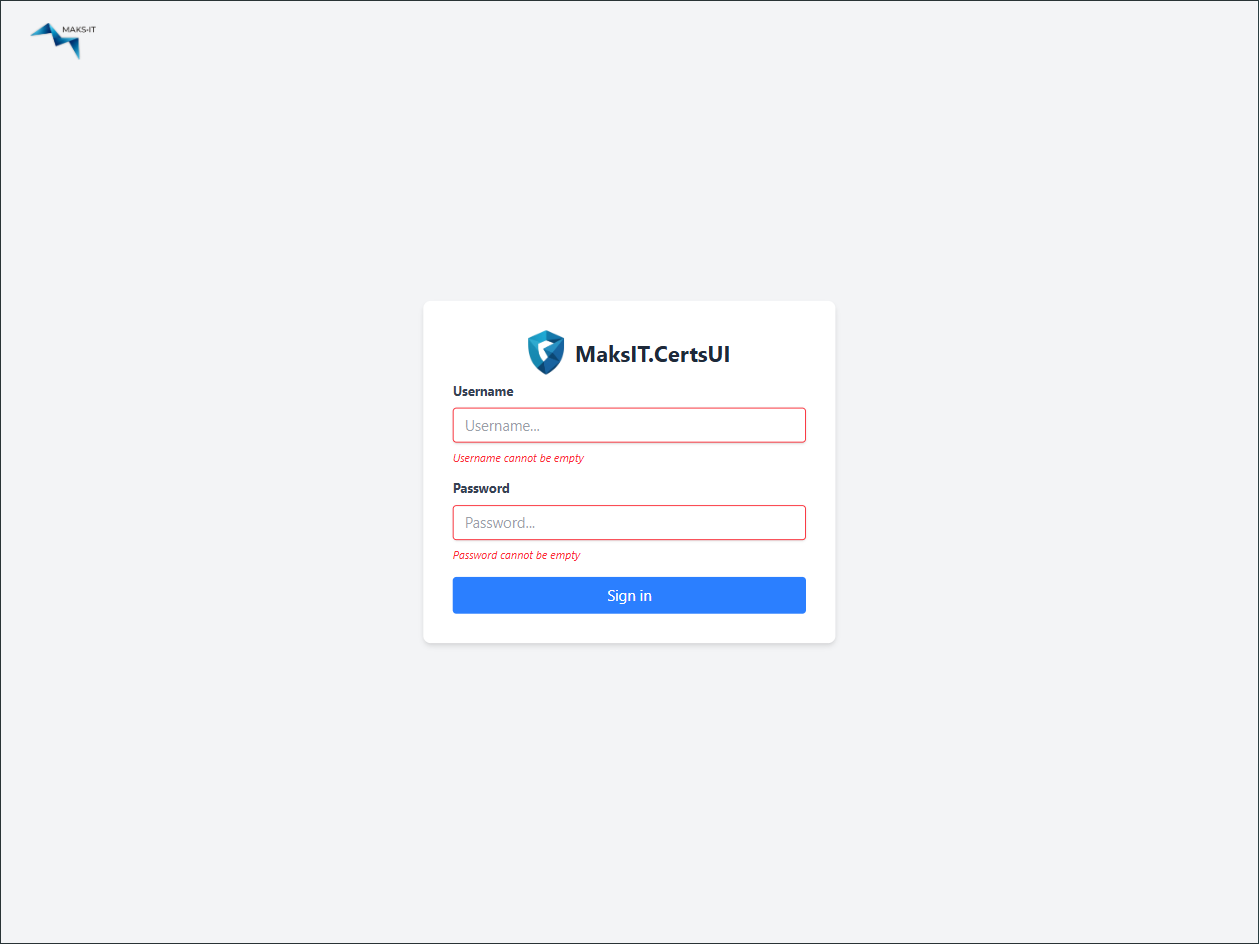
- First Login: Open the client in your browser. Default credentials:
- Username:
admin - Password:
password
Important: Change the default password immediately after logging in for the first time for security.
-
Change the Default Password:
Click on the admin username in the top right corner and select Edit User.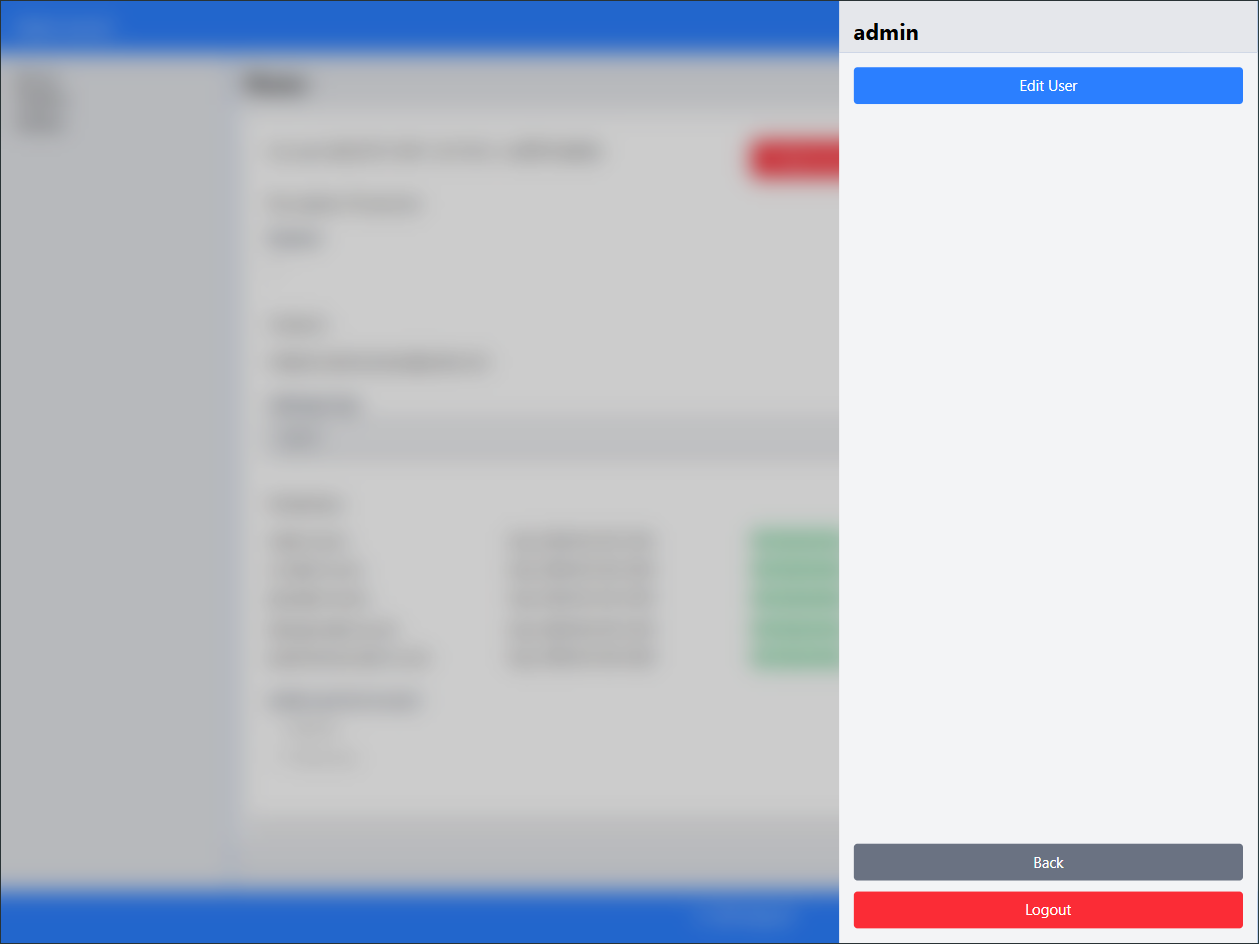
Go to Change password.
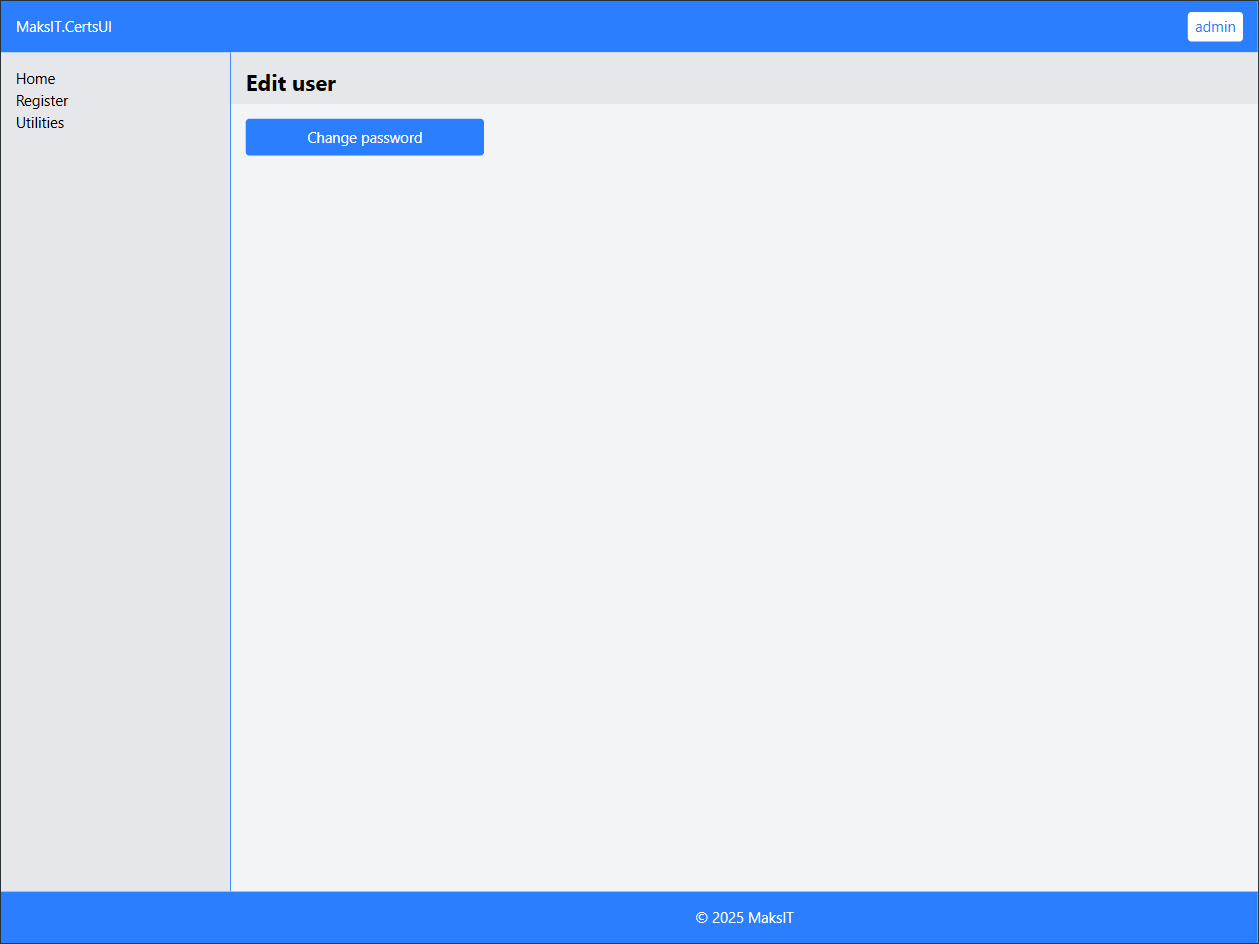
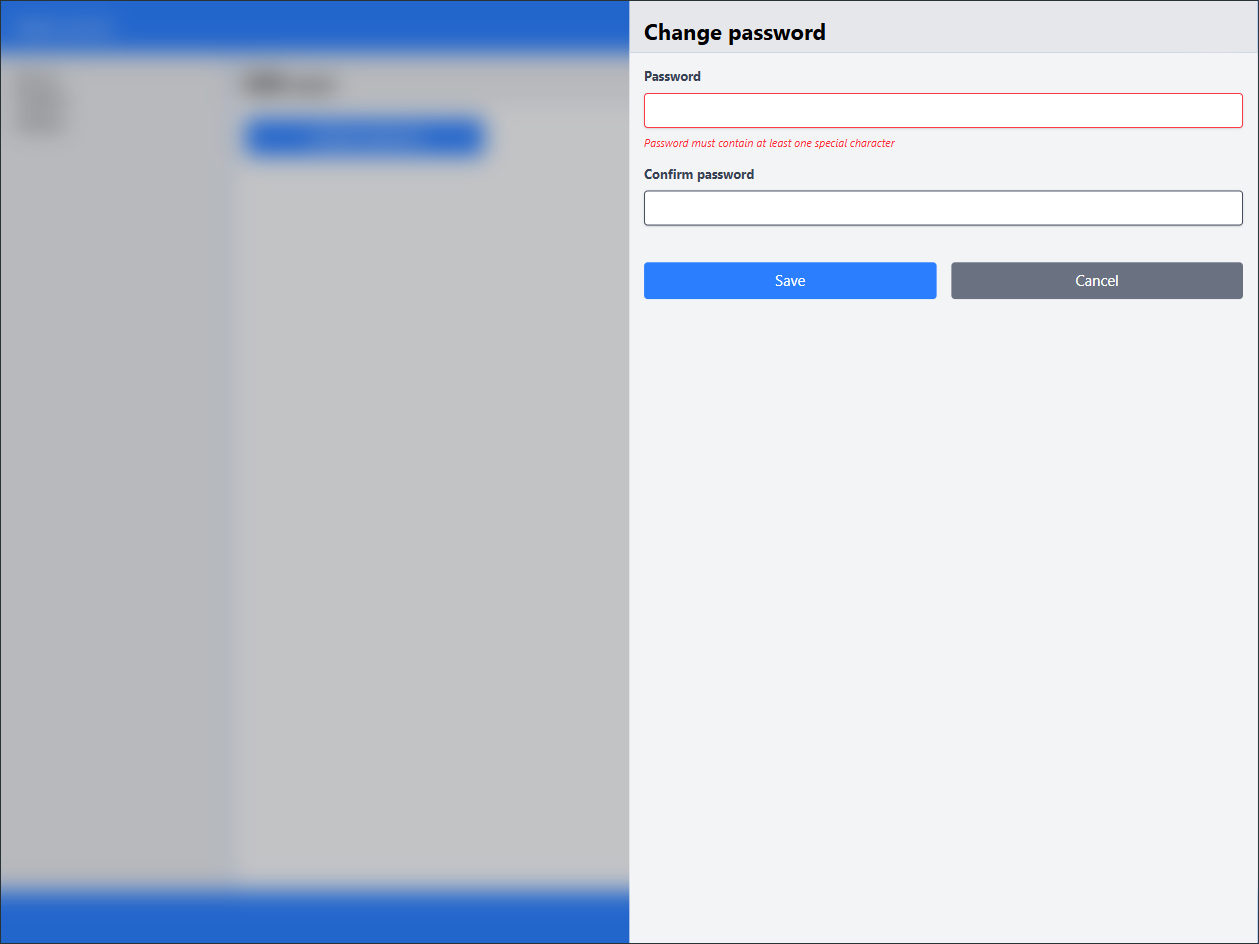
Enter a strong, alphanumeric password with special characters.
-
Verify Agent Connectivity:
Before registering certificates, ensure the agent is properly configured and available.
Go to Utilities and click Test agent. If everything is set up correctly, a "Hello World!" toast notification will appear.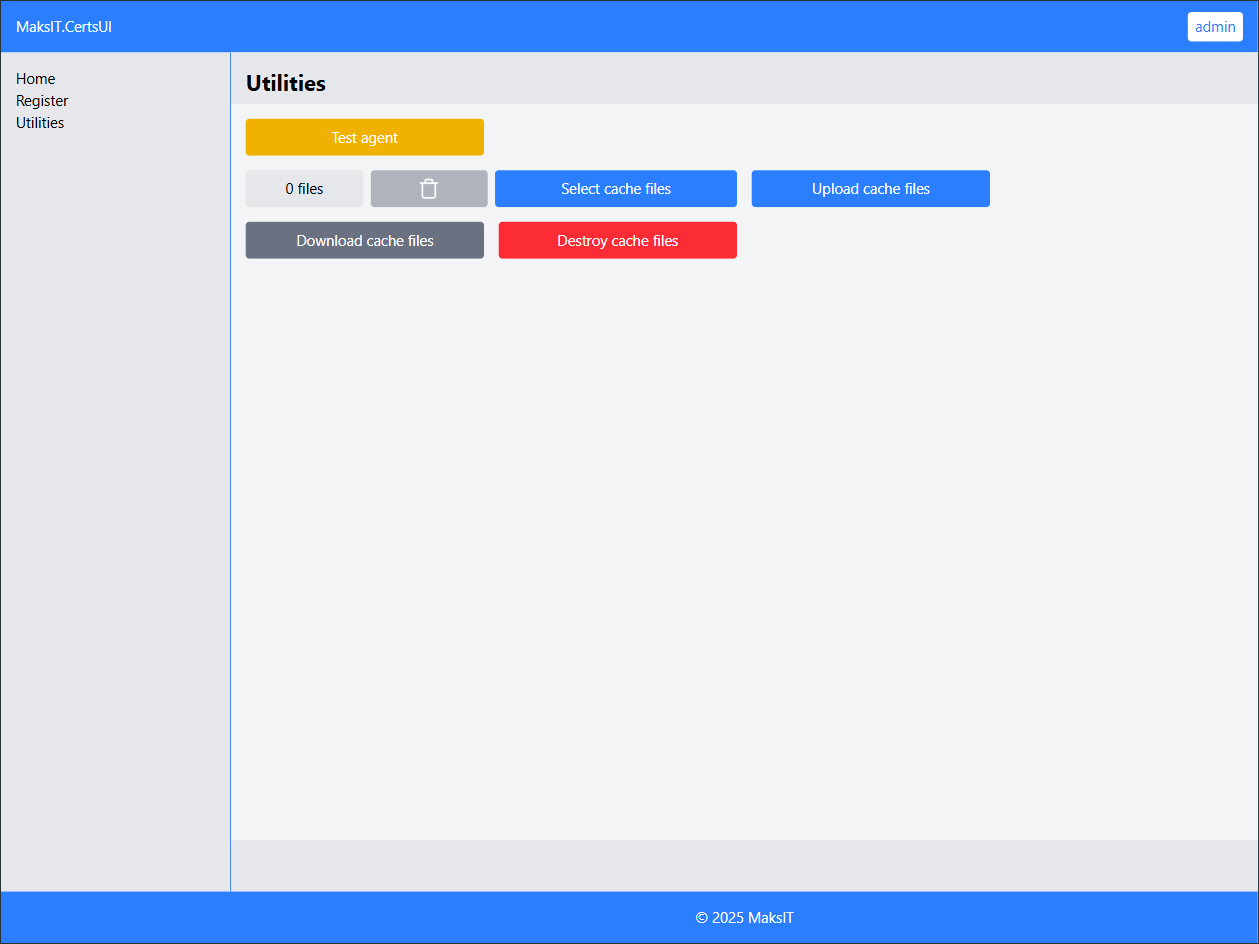
-
Register a New Account:
Proceed to register a new account and fill in the required fields.
Tip: Start with a few hostnames and gradually add 3 or 4 at a time.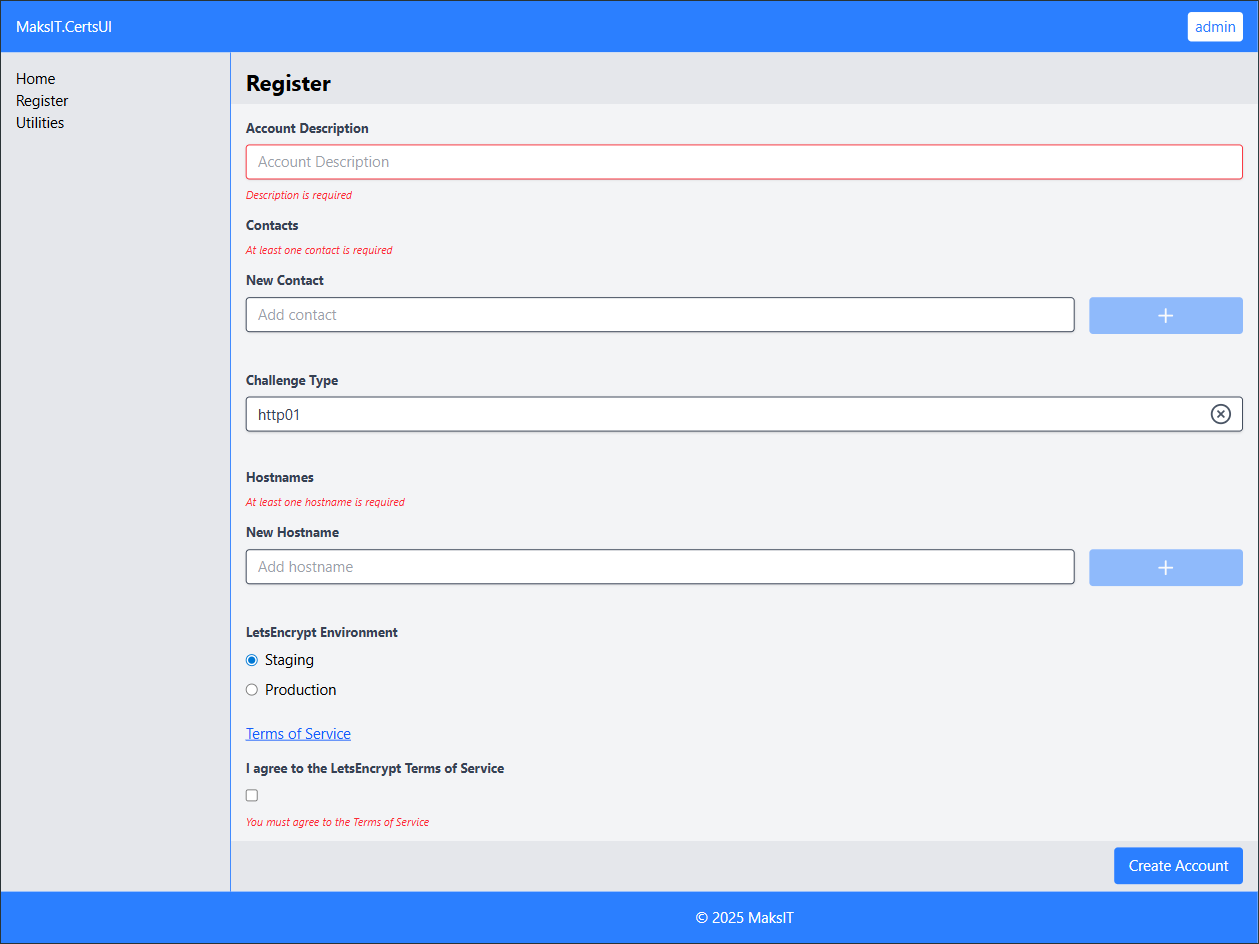
-
View and Manage Certificates:
If registration is successful, your new account will be created and you will see a list of obtained certificates along with their expiration dates.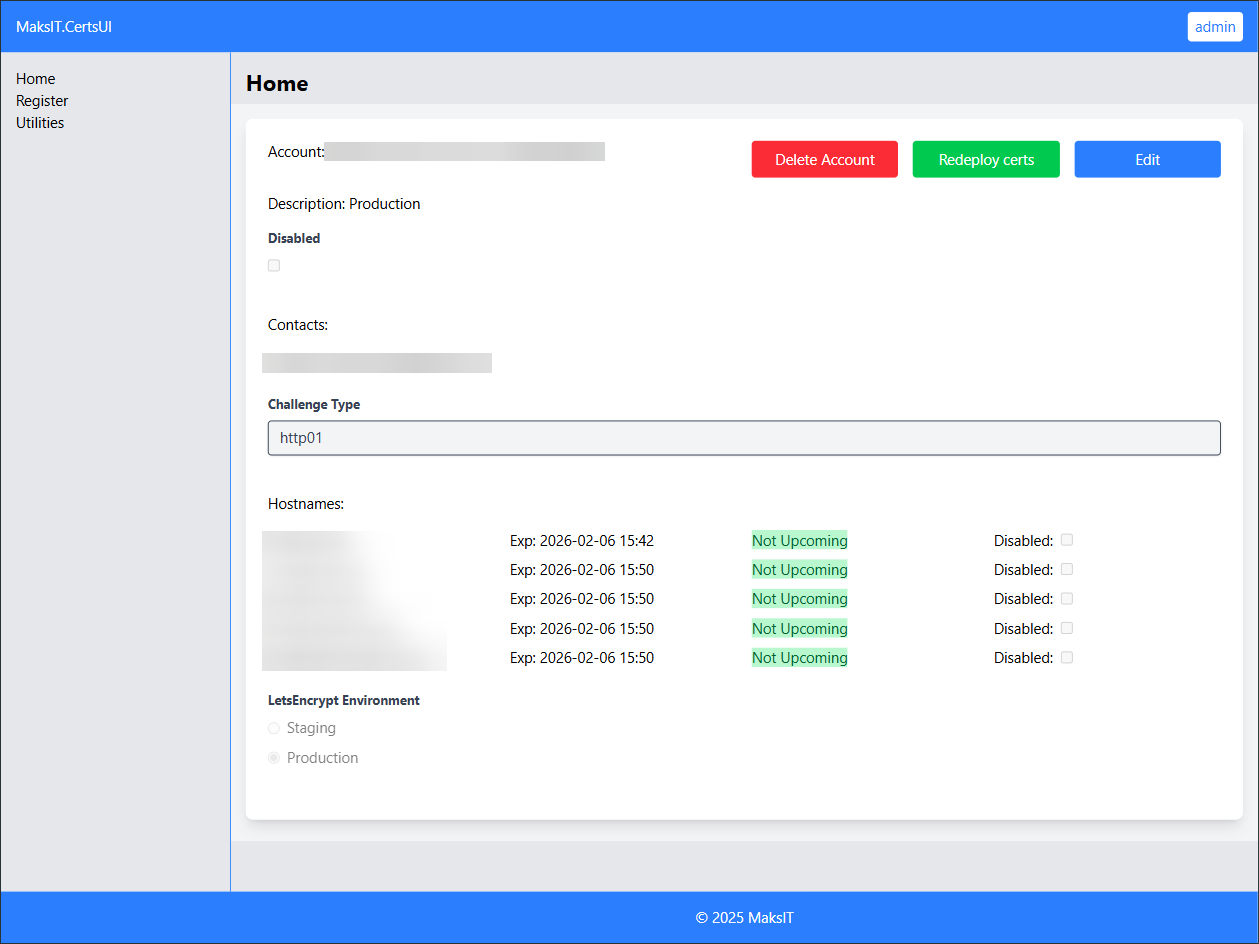
The WebUI streamlines certificate management, making it easy to change credentials, verify agent status, and monitor certificate lifecycles.
Contact
For any inquiries or contributions, feel free to reach out:
- Email: maksym.sadovnychyy@gmail.com
- Author: Maksym Sadovnychyy (MAKS-IT)