4.0 KiB
Features
Screen notes for MaksIT UScheduler. The README shows each screen. This page is the button names and the same screenshots.
Store listing order is the microsoft-store mark above an image. The README uses the same marks. Paste the listing text from packaging/microsoft-store.
Scripts
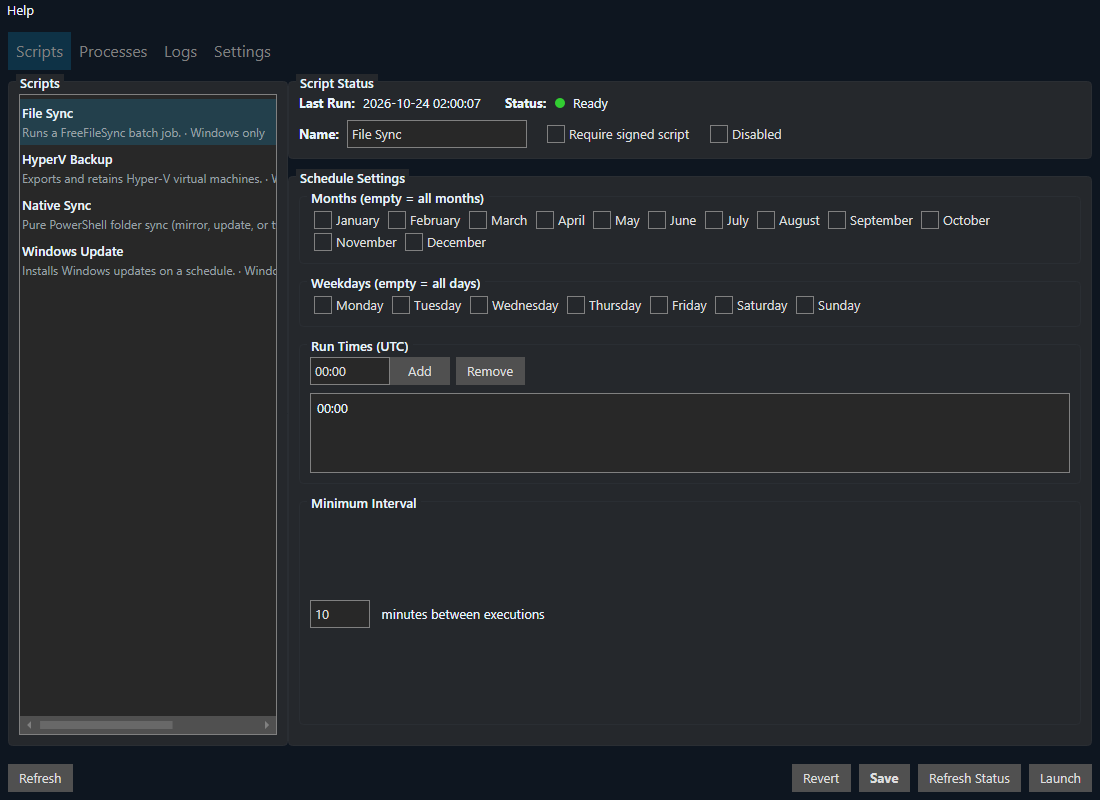
The Scripts tab lists every PowerShell script in the shared settings file. Each row shows a description and which hosts it supports. A script that cannot run on this operating system stays in the list and is grayed out. Select a row to edit its schedule.
Name is the label in the list. Require signed script uses the AllSigned policy. Disabled skips the script on the schedule. Run Month and Run Weekday limit when it runs; empty means every month and every day. Run Time is one or more times in HH:mm. Min Interval is the minimum minutes between runs.
Save writes the schedule to the shared settings file. Revert drops unsaved edits. The status line shows the lock file and the last run. A lock left by a crashed script can be removed.
Launch
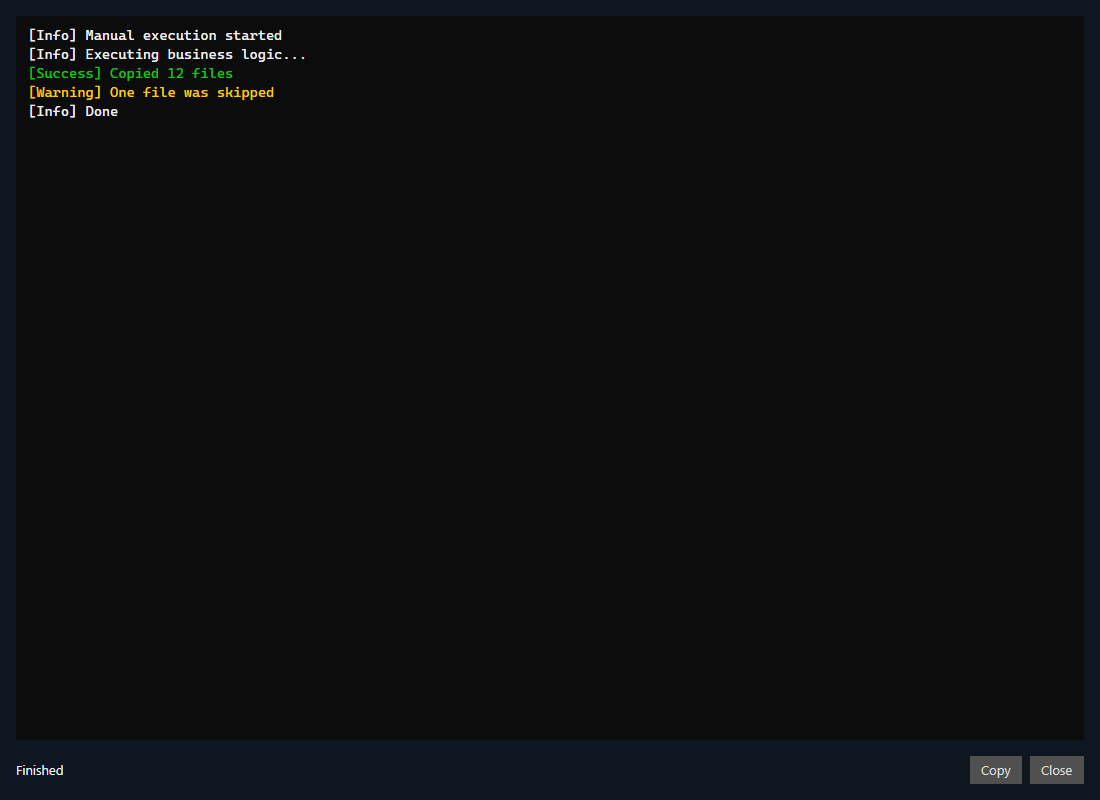
Launch asks the running service to start the selected script now. The window does not need administrator rights. That run ignores the schedule and the minimum interval. The script log is written the same way as a scheduled run, and a window follows the new lines until the run finishes. A second launch of the same script uses the window that is already open.
Processes
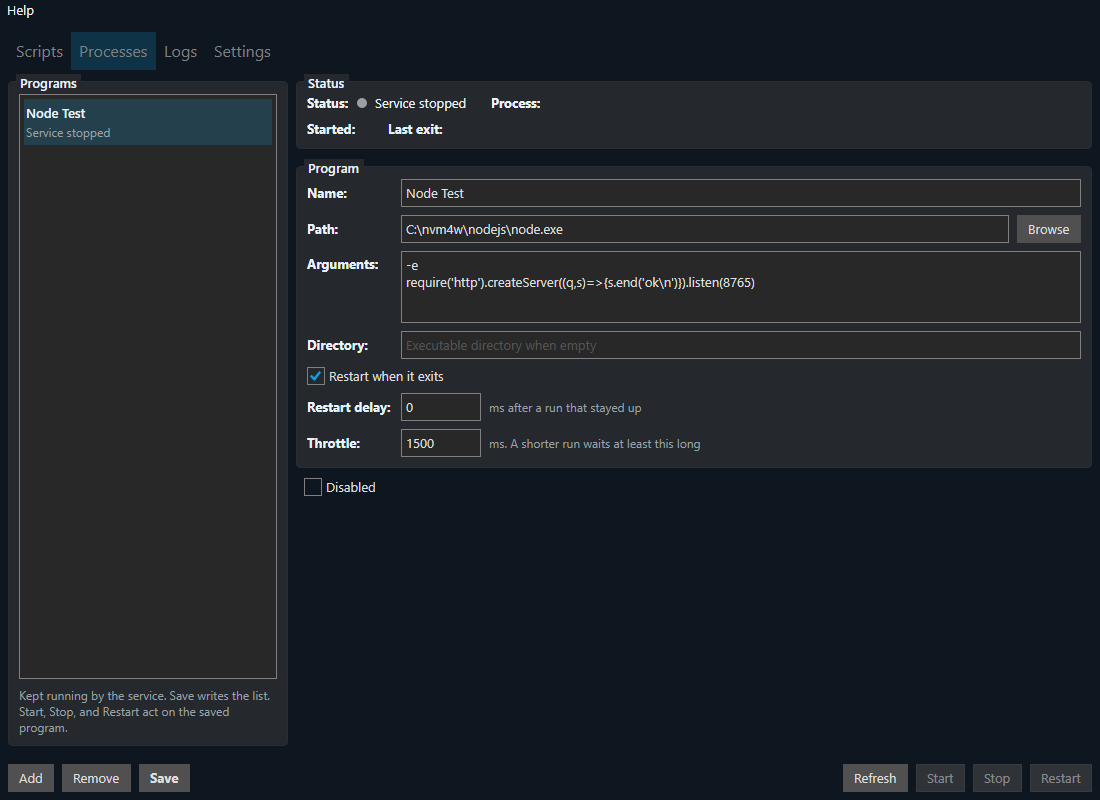
The Processes tab lists programs the service keeps running. Each row shows running, restarting, stopped, or waiting. Name is the label. Add a program, set its path, arguments, and working directory, then Save. Remove drops it from the service. Start, Stop, and Restart ask the running service, so the program runs as the service account. Stop leaves it down until Start, or until the service itself starts again.
A configured program starts with the service and stops when the service stops. With restart on failure, any exit starts it again.
Settings
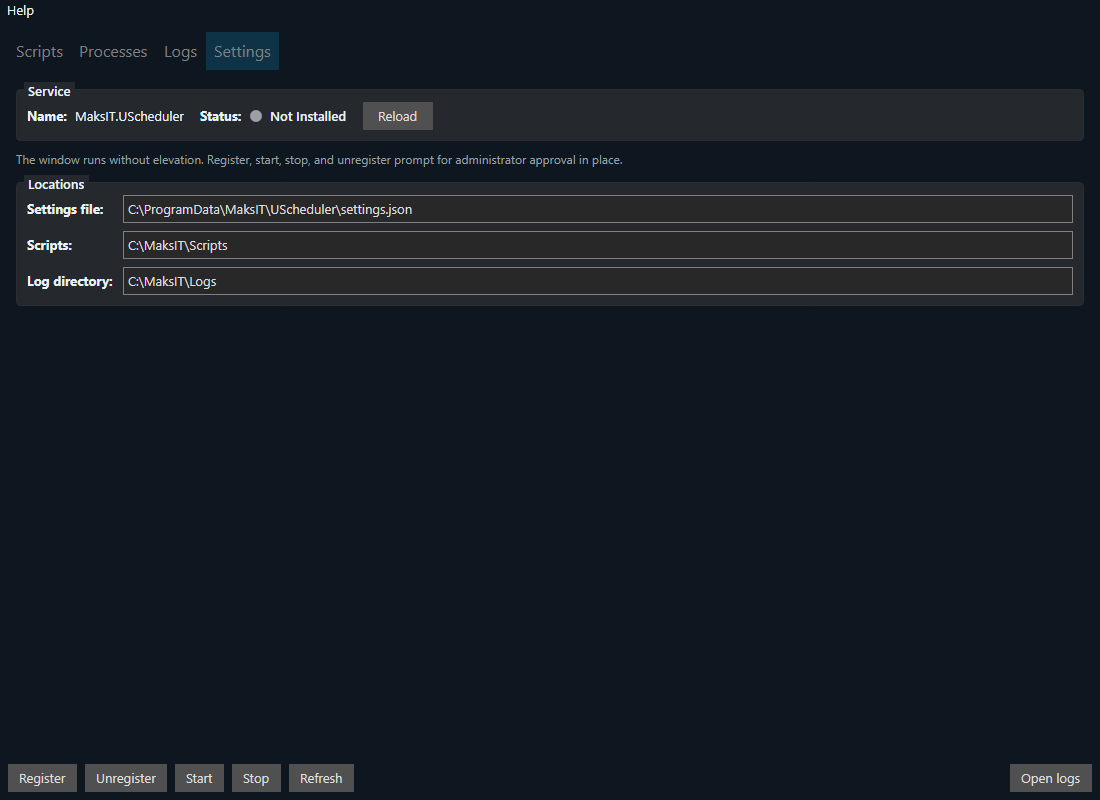
Settings is the service and the folders. Service is the installed name and status: Running, Stopped, Starting, Stopping, Paused, or Not Installed. The service is this same program. Locations are the settings file, the scripts folder, and the log directory.
Register and Unregister install or remove the Windows service or the systemd unit. Start and Stop change that service. Each of those asks for approval in place, and the window stays open. Refresh reads the service status. Reload reads the service status and the shared settings again. Open logs opens the log directory.
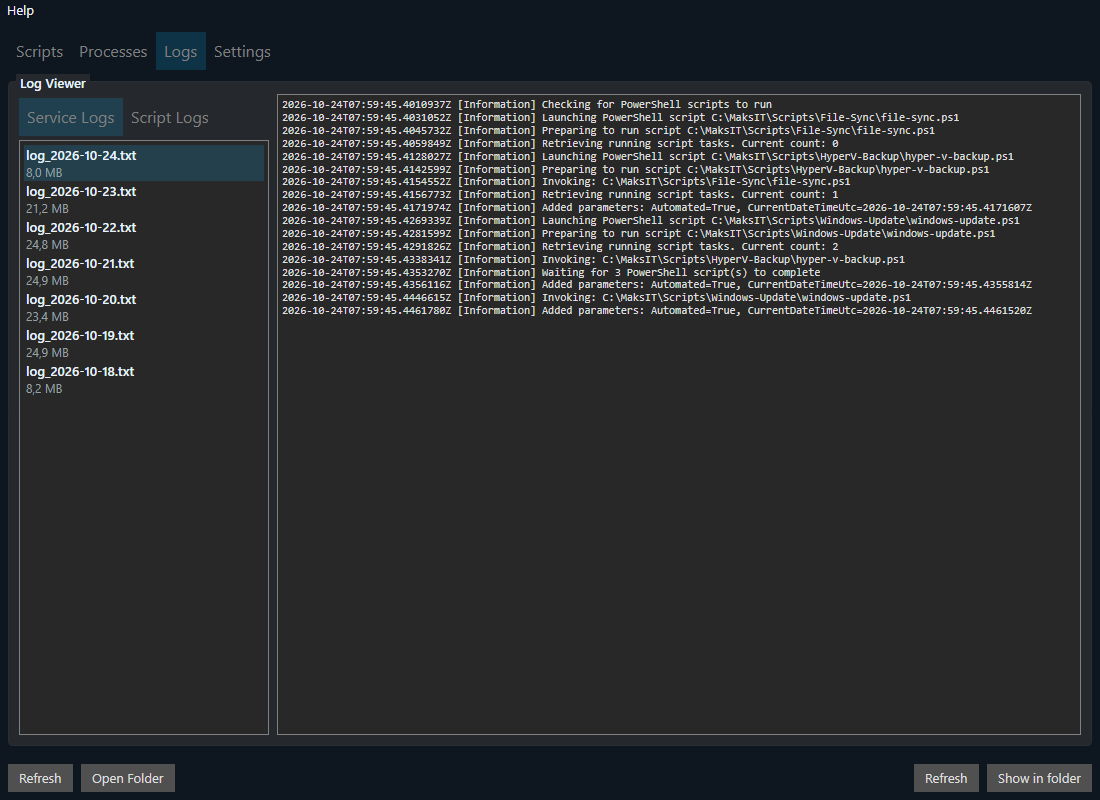
Service logs
Service logs are the scheduler's own log files, newest first. The text opens in the window. Open Folder opens the log directory. With a file selected, Show in folder opens that file's folder. Refresh reads the folder again.
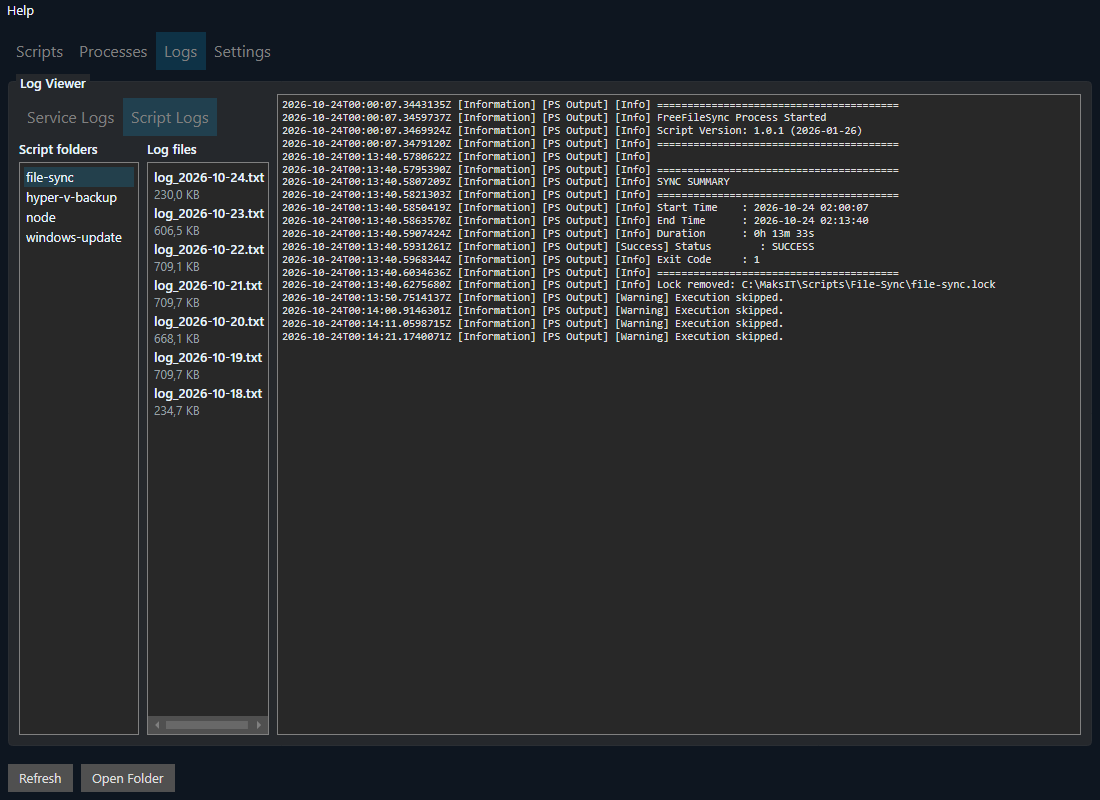
Script logs
Script logs are one folder per script. Select a file to read that run. Open Folder opens the log directory. With a file selected, Show in folder opens that file's folder.
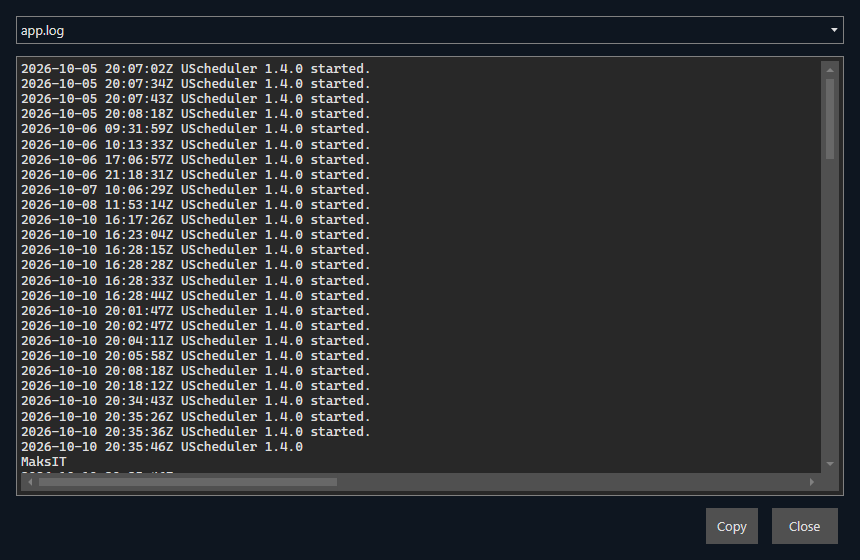
Program log
Help → Logs shows the program log and crash reports. An unhandled error opens a window you can copy. The same text is saved under the UScheduler logs folder.
About
Help → About shows the product, license, and contact. After an upgrade, What's New lists additions since the version you last opened.